Knowledge SuperBox
Fix SuperBox Devices Forbidden Issue on Your Android TV 2026





Powering on your television media player only to encounter a sudden “Device Forbidden”, “Device Prohibited”, or “Unauthorized Device” prompt on your screen is an alarming experience for any cord-cutter. This error message immediately blocks access to streaming applications, preventing you from watching live channels, sporting events, and movie libraries.
Fortunately, this notification is almost never caused by permanent hardware failure. Instead, it is an automated cloud security protocol designed to prevent counterfeit piracy, unauthorized retail tampering, and blacklisted server access.
Quick Check: The “Device Forbidden” prompt occurs when SuperBox authentication servers detect a blacklisted MAC address from an unauthorized grey-market reseller, an IP location conflict, or a desynchronized security token after a system reset. To fix the issue, record the MAC address on the bottom barcode of your console and contact authorized customer support at superboxs8.com with verification code SP20250414002 to reauthorize your device on the master cloud network.

Technical Root Causes of the Device Forbidden Error
SuperBox media players connect to high-bandwidth private server networks that authenticate every console using a unique combination of its Media Access Control (MAC) address and hardware serial number.
The comparison table below details the common causes of the forbidden error, their underlying technical triggers, and the recommended resolution path for each scenario.
| Underlying Cause | Technical Error Mechanism | Risk Level | Recommended Solution |
|---|---|---|---|
| Unauthorized Marketplace Reseller | Console purchased from rogue third-party marketplace seller with blacklisted retail batch | High | Verify serial authenticity through authorized distributor superboxs8.com for backend re-activation |
| Server Security Token Desynchronization | Cloud handshake timeout following an abrupt power loss or major system firmware update | Low | Perform complete network gateway reboot and re-sync device system clock |
| Restrictive ISP Firewall or DNS Filtering | Local internet service provider blocks authentication handshake packets to content servers | Moderate | Manually configure public DNS servers (8.8.8.8 or 1.1.1.1) in Android network settings |
| Aggressive VPN or Proxy IP Conflict | Third-party VPN routing console through blacklisted or heavily restricted foreign server nodes | Low | Disconnect active VPN client or configure split-tunneling to bypass streaming applications |
| Corrupted Application Cache Data | Outdated authentication tokens trapped inside local Blue TV or Blue VOD storage caches | Low | Clear application cache and data, then download the latest APK build from the App Store |
Detailed Analysis of Why SuperBox Devices Become Prohibited
Understanding the security architecture of the SuperBox ecosystem clarifies why these protections exist and how to avoid triggering them.
Counterfeit Hardware and Unauthorized Grey Market Sellers
The most frequent cause of the “Device Forbidden” prompt stems from purchasing consoles through unauthorized third-party marketplace listings on platforms like eBay, AliExpress, or unrecognized social media storefronts. Disreputable vendors often clone legitimate MAC addresses across multiple physical boxes or resell decommissioned test hardware.
When manufacturer authentication servers detect multiple simultaneous connections sharing an identical hardware identifier, the automated security system immediately blacklists the entire MAC address series to protect network integrity. Genuine consoles purchased through authorized distributors like superboxs8.com operate under certified dealer code SP20250414002, guaranteeing clean, whitelisted serial numbers with subscription-free server access.
Server Handshake Timeouts and Network Clocks
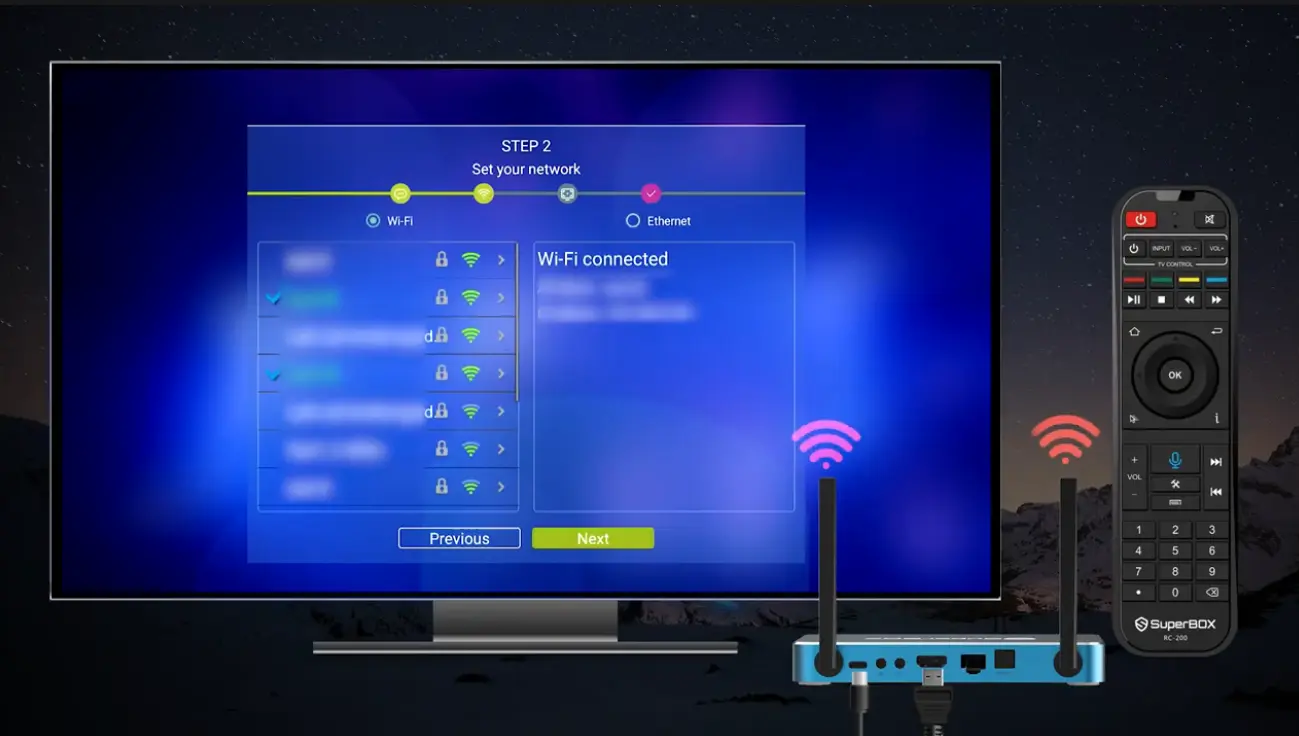
When your SuperBox boots up, it contacts time-stamped authentication servers to validate its authorized service license. If your home internet router experiences latency spikes or if the internal Android system clock is incorrect following a prolonged power outage, the security handshake will fail.
Because cryptographic security certificates require synchronized system time, a console set to an incorrect year or date cannot validate authentication tokens, triggering a false “Forbidden” prompt. Simply correcting the date and time zone within Android system settings often clears the error immediately.
ISP Content Filtering and DNS Blocking
Certain regional internet service providers implement aggressive automated security filters that intercept or misroute domain lookup requests for media streaming servers. When your TV box attempts to reach its licensing validation server, the ISP DNS resolver returns a null route.
Switching your network connection from your default internet provider DNS to reliable global public DNS services—such as Google Public DNS (8.8.8.8) or Cloudflare DNS (1.1.1.1)—bypasses these local routing restrictions and restores instant communication with authentication gateways.
 2026 Flagship
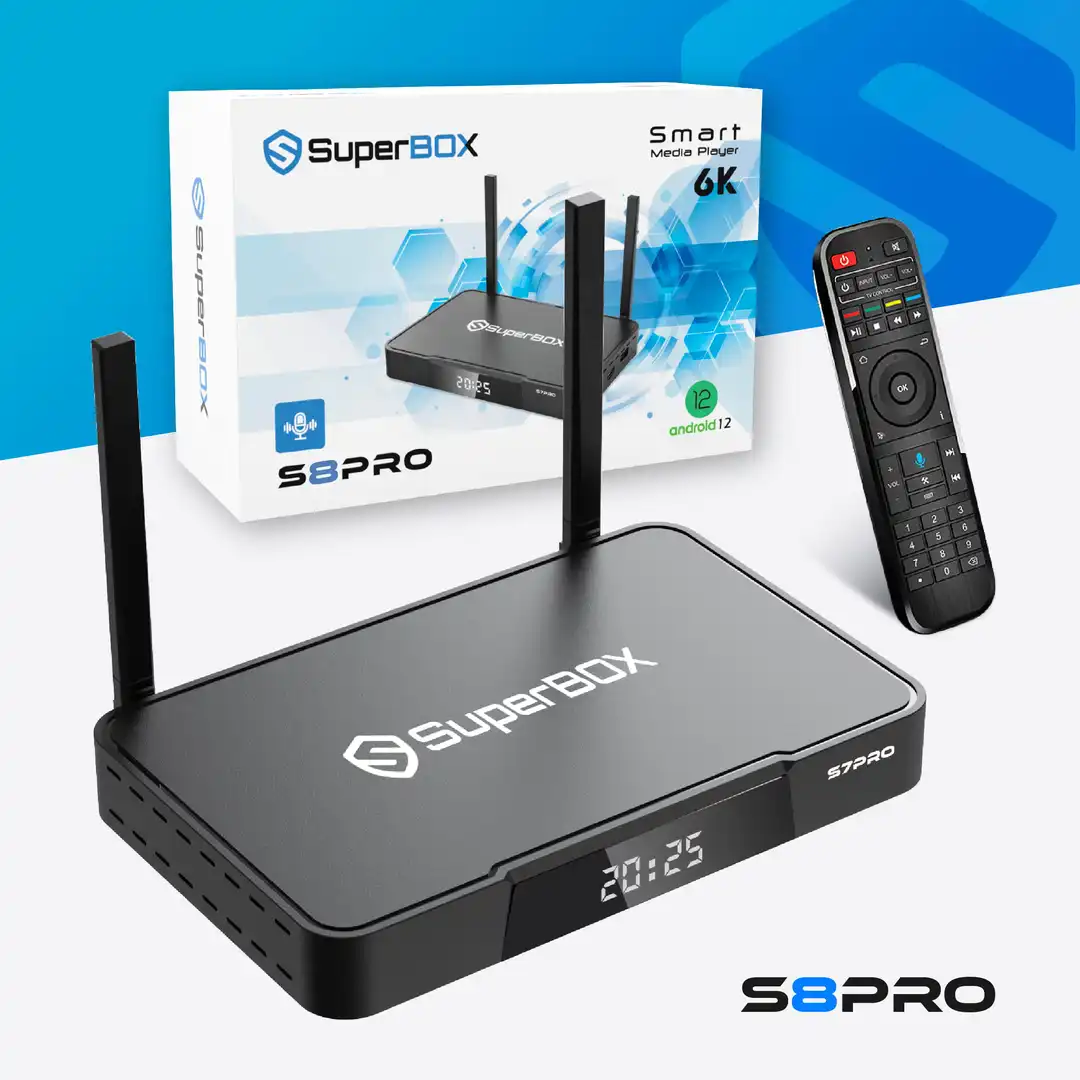
The 2026 flagship SuperBox S8 Pro delivers 4GB RAM, 32GB storage, Wi-Fi 6, 1000Mbps Gigabit Ethernet, 7-Day Cloud Playback, and seamless voice control with zero monthly subscription fees.
Step-by-Step Troubleshooting Procedure to Fix the Error
Step 1: Document Your Hardware MAC Address and Serial Number
Locate the white barcode sticker affixed to the bottom underside of your SuperBox console. Write down the complete 12-character MAC address (format: XX:XX:XX:XX:XX:XX) and the full serial number (SN). You can also find these values inside the Android Settings menu under “About Device.”
Step 2: Perform a Complete Power Cycle of Network and Console
Power down your SuperBox and unplug the power adapter from the wall outlet. Unplug your home internet modem and Wi-Fi router. Wait two full minutes, then plug your modem and router back in. Once your home internet connection is fully restored, reconnect power to your SuperBox.
Step 3: Verify and Synchronize Android Date and Time
Navigate to Android Settings > Device Preferences > Date & Time. Ensure that “Automatic date & time” is set to “Use network-provided time.” Confirm that your selected Time Zone matches your actual geographical location.
Step 4: Configure Public DNS Settings in Network Menu
Go to Settings > Network & Internet > Select your active Wi-Fi or Ethernet connection. Select IP Settings > Change from DHCP to Static. Keep your IP address and gateway identical, but enter 8.8.8.8 for DNS 1 and 8.8.4.4 for DNS 2.
Step 5: Clear Application Cache and Reinstall via App Store
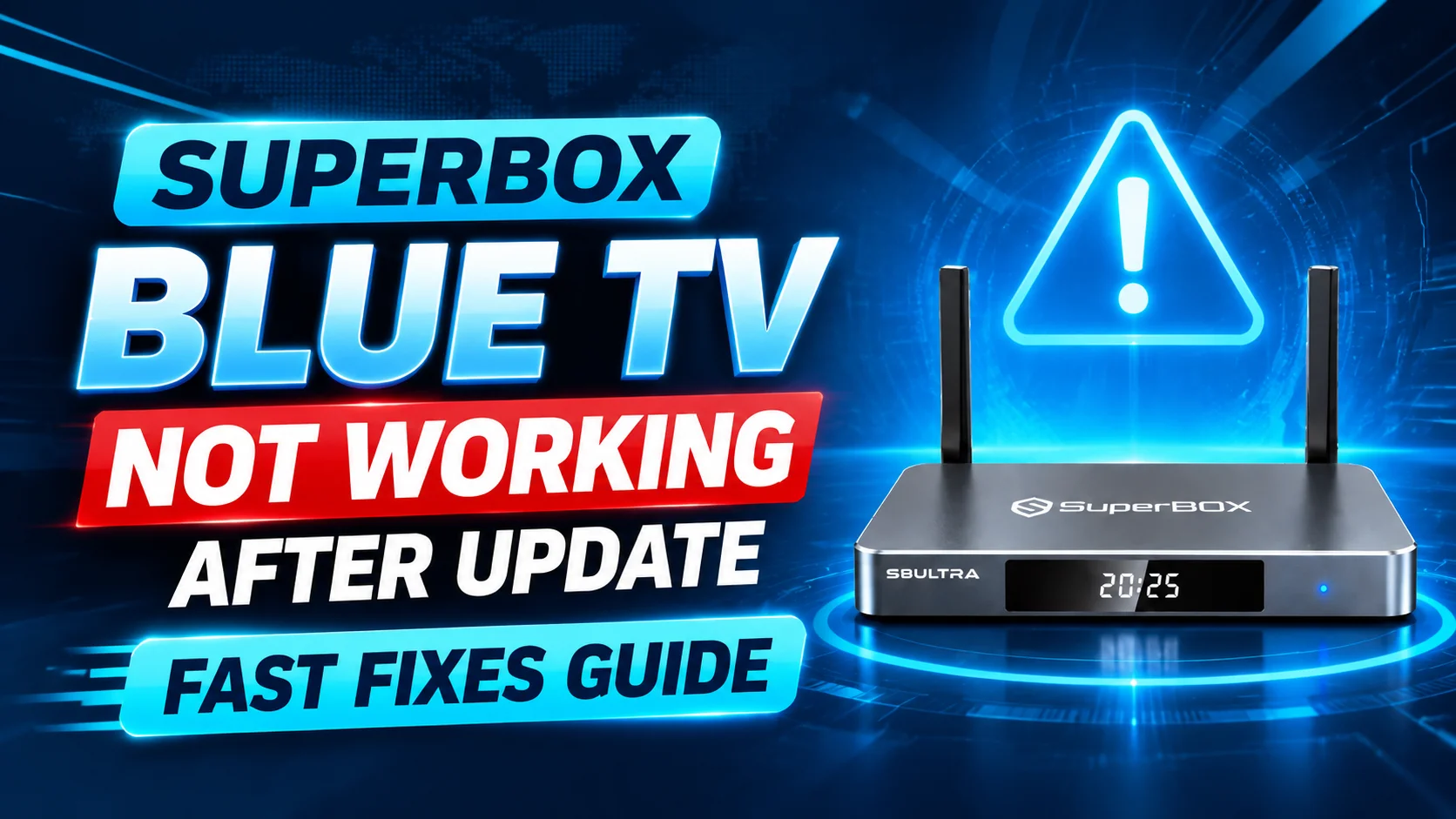
Navigate to Settings > Apps > See All Apps > Select Blue TV (or the affected application). Click “Clear Cache”, then click “Clear Data.” If the prompt persists, uninstall the app, open the official App Store from the home screen, and download the latest application release.
Step 6: Contact Official Authorized Customer Support
If the steps above do not clear the notification, your hardware MAC address requires backend reauthorization on the cloud server. Contact our dedicated California customer care team at superboxs8.com via WhatsApp, email, or telephone with your MAC address, serial number, and proof of purchase for rapid account restoration.
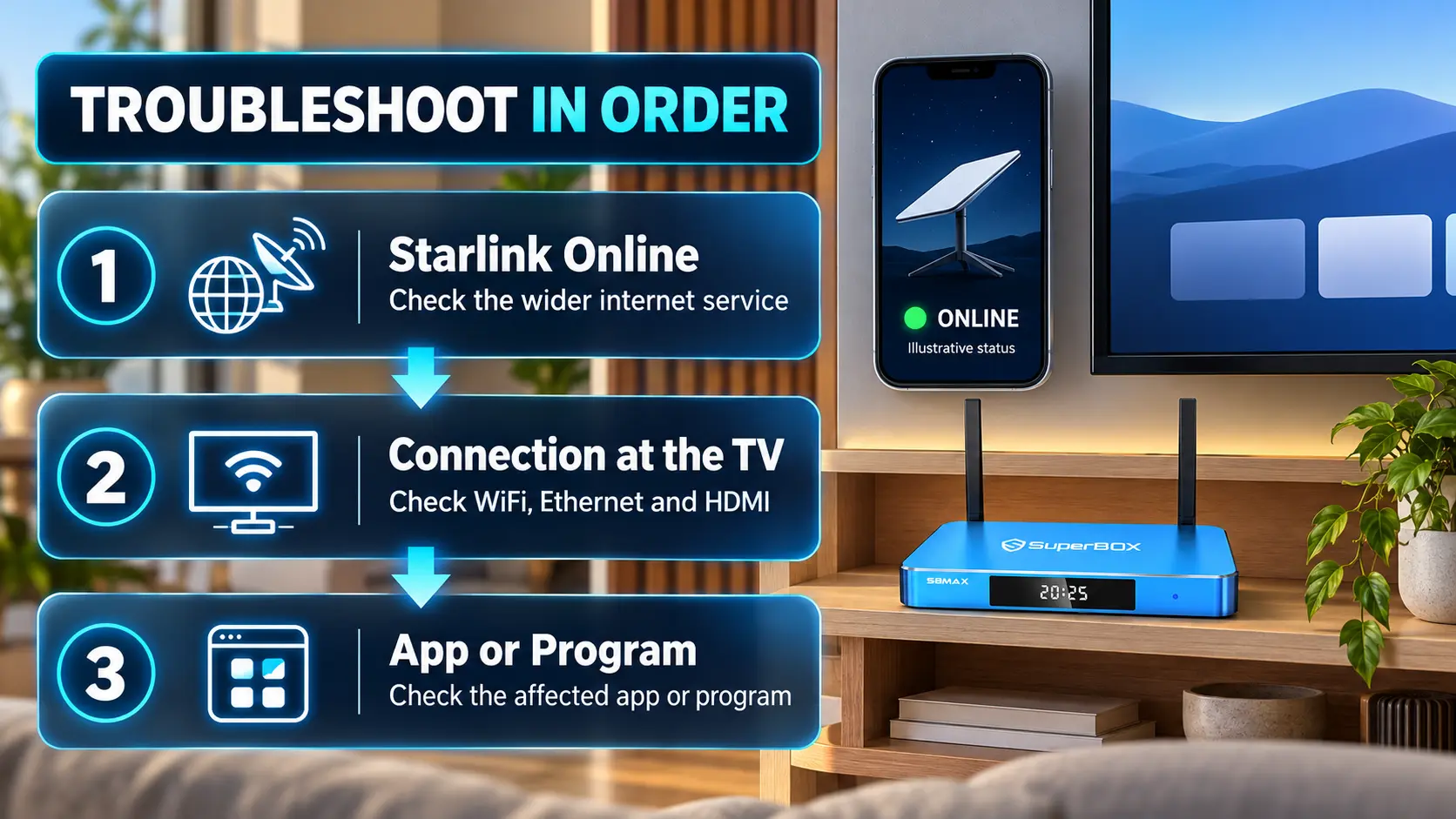
How to Protect Your Device from Future Authorization Blocks?
To guarantee uninterrupted streaming performance, always follow these essential operational practices:
Avoid downloading unverified third-party firmware update files from internet discussion forums, as unauthorized recovery files can overwrite official licensing partitions. Keep your system updated exclusively through official over-the-air system notifications or verified downloads from superboxs8.com.
Never share photos of your box bottom barcode, MAC address, or serial number on public social media groups, as malicious actors can attempt to spoof your credentials. Most importantly, always secure your media player through authorized distributors to maintain permanent warranty protection.
Frequently Asked Questions
Does the Device Forbidden error mean my SuperBox is permanently broken?
No, the error is a software-level cloud security notification. The physical hardware is completely functional and can be restored once the licensing handshake is reauthorized.
How long does it take for customer support to unblock a prohibited device?
When you contact authorized support at superboxs8.com with your valid MAC address and serial number, technicians typically re-whitelist the device on the cloud server within a few hours.
Why did my SuperBox show Device Forbidden after a factory reset?
Performing a factory reset erases temporary security authentication tokens stored on the internal flash storage. The console must re-establish a fresh cryptographic handshake with the server, which can take several minutes or require time synchronization.
Can a VPN cause the Device Forbidden notification?
Yes, connecting through certain commercial VPN server IP addresses that have been flagged for abusive traffic can cause server authentication firewalls to reject the connection.
How can I verify if my SuperBox is authentic or counterfeit?
Check the bottom barcode on your console. Authentic devices feature clean laser-etched serial numbers that register successfully with authorized distributors operating under verification code SP20250414002.
Will changing my home internet provider fix the forbidden error?
If the error is caused by your internet service provider blocking server DNS requests, changing to a different network or configuring public DNS (8.8.8.8) will resolve the connection failure immediately.
What should I do if the seller I bought from on eBay has disappeared?
If an unauthorized seller sold you a blacklisted or cloned box and is unreachable, contact superboxs8.com customer support to evaluate your serial number for legitimate recovery options or certified replacement upgrades.
Can I install standard Android apps while my box is showing the error?
Yes, the underlying Android operating system remains functional, allowing you to access YouTube, web browsers, and system utilities while resolving server authentication for dedicated streaming applications.
Is there a fee to unblock an authentic SuperBox device?
No, authorized distributors never charge service fees to restore authentic, legitimate hardware under official warranty protection.
How do I contact official SuperBox technical customer care?
You can reach our dedicated North American technical team directly through the support portal at superboxs8.com via direct telephone, WhatsApp messaging, and ticketing email.
Final Thoughts
Encountering unexpected server authentication errors can interrupt your favorite shows, but standard diagnostic steps resolve the vast majority of network access issues. Verifying stable gateway connectivity and refreshing application security data quickly restore normal access.
Maintaining accurate system time settings and keeping your media player updated guarantees seamless communication with authorized streaming servers. Regular device maintenance keeps your SuperBox hardware operating smoothly without playback interruptions.
The article was updated on:
