
Knowledge SuperBox
Perfect Resolution for Android TV Box Display Guide





Configuring display settings on an Android TV media player seems straightforward until viewers encounter choppy frame rates, washed-out colors, fuzzy text, or unexpected black screen handshakes.
Choosing the perfect resolution requires balancing your television panel native pixel density, refresh rate synchronization, HDMI bandwidth capacity, and content streaming bitrates. Setting your box to an uncalibrated resolution can force double-scaling artifacts that degrade picture clarity rather than improving it.
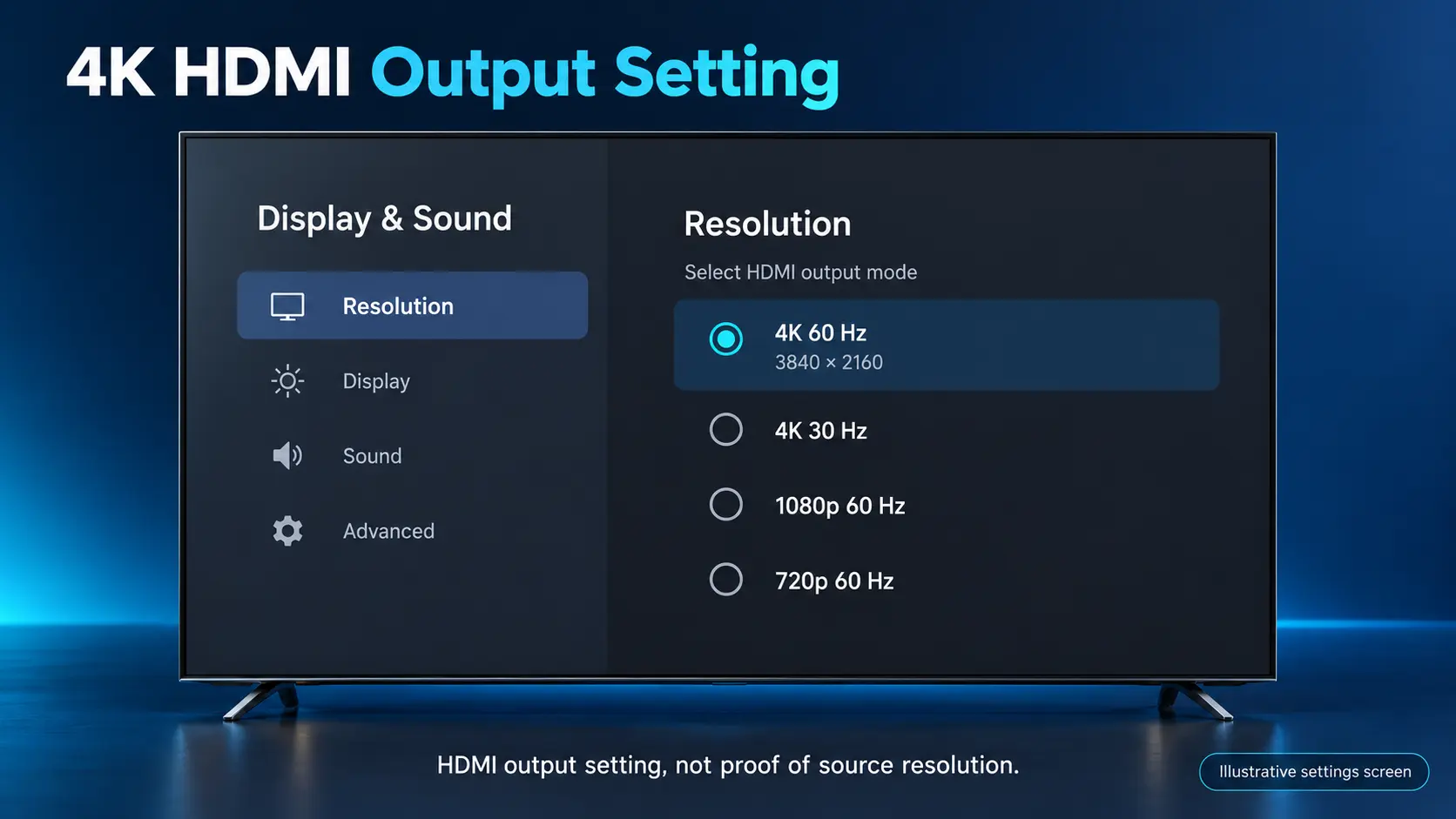
Quick Check: The perfect resolution setting for modern Android TV boxes like the SuperBox S8 series is 4K Ultra HD at 60Hz (3840x2160p @ 60fps) with YCbCr420 or YCbCr422 10-bit color. For older high-definition displays, setting the box output strictly to 1080p at 60Hz avoids video downscaling stutter and guarantees smooth motion for live sports broadcasts.
Technical Foundation of Android TV Box Display Resolutions
Television displays operate at fixed native pixel matrices. Whenever the output resolution of an Android TV console does not match the physical pixel grid of the television panel, digital scaling algorithms must interpolate pixels, which can introduce blurriness or motion artifacts.
The comparison table below details standard display resolutions, target refresh rates, HDMI cable requirements, and practical viewing recommendations for Android TV media players.
| Output Resolution Mode | Pixel Dimensions | Optimal Refresh Rate | Required HDMI Standard | Recommended Content Scenario |
|---|---|---|---|---|
| 1080p Full High Definition | 1920 x 1080 Pixels | 60Hz (59.94Hz NTSC) | HDMI 1.4 or Better | Bedroom TVs, 1080p monitors, and bandwidth-constrained home networks |
| 4K Ultra High Definition | 3840 x 2160 Pixels | 60Hz (Fluid Motion) | HDMI 2.0 or HDMI 2.1 | Modern 4K HDR displays, live sports broadcasts, and 4K VOD movie releases |
| 6K Video Decoding (Internal) | 5760 x 3240 Pixels | 60Hz (Internal Canvas) | HDMI 2.1 Pass-Through | High-bitrate camera files and hardware H.265 video playback downscaled to 4K |
| 8K Ultra High Definition | 7680 x 4320 Pixels | 24Hz to 30Hz (Marketing) | Ultra High Speed HDMI 2.1 | Specialized commercial displays; limited practical value for home streaming |
| 720p Standard Definition | 1280 x 720 Pixels | 60Hz | Standard HDMI Cable | Legacy displays or mobile hotspot viewing with strict data limits |
Detailed Analysis of Key Display and Resolution Settings
Matching Native Panel Resolution to Prevent Double Scaling
The most critical principle of digital video playback is native mapping. If you connect an Android TV box to a 4K television panel, configuring the box to output 1080p forces two separate scaling stages: the TV box renders internal menus at 1080p, and the television internal scalar stretches those pixels to fit its 4K physical screen.
This dual-scaling process softens image edges and dulls small text on electronic program guides. Setting your Android box output directly to 3840x2160p ensures that the console sends a pixel-accurate signal directly to your 4K television glass, delivering maximum sharpness and text clarity.
Refresh Rate Selection and Live Sports Motion Smoothing
Resolution represents only half of the visual equation; the refresh rate, measured in Hertz, dictates how smoothly motion appears across your television screen. North American live broadcast networks transmit sports, news, and entertainment at sixty fields or frames per second.
Setting your TV box to thirty Hertz or allowing it to default to twenty-four Hertz causes noticeable motion judder during fast-moving hockey games, football passes, or basketball drives. Always lock your Android TV display output to 60Hz (or 59.94Hz) to guarantee buttery-smooth panning and seamless athletic action.
Color Depth Calibration: 8-Bit versus 10-Bit YCbCr Formats
Standard high-definition video utilizes 8-bit color depth, which produces approximately 16.7 million distinct color shades. High Dynamic Range (HDR) content, by contrast, relies on 10-bit color pipelines capable of rendering over 1.07 billion color variations.
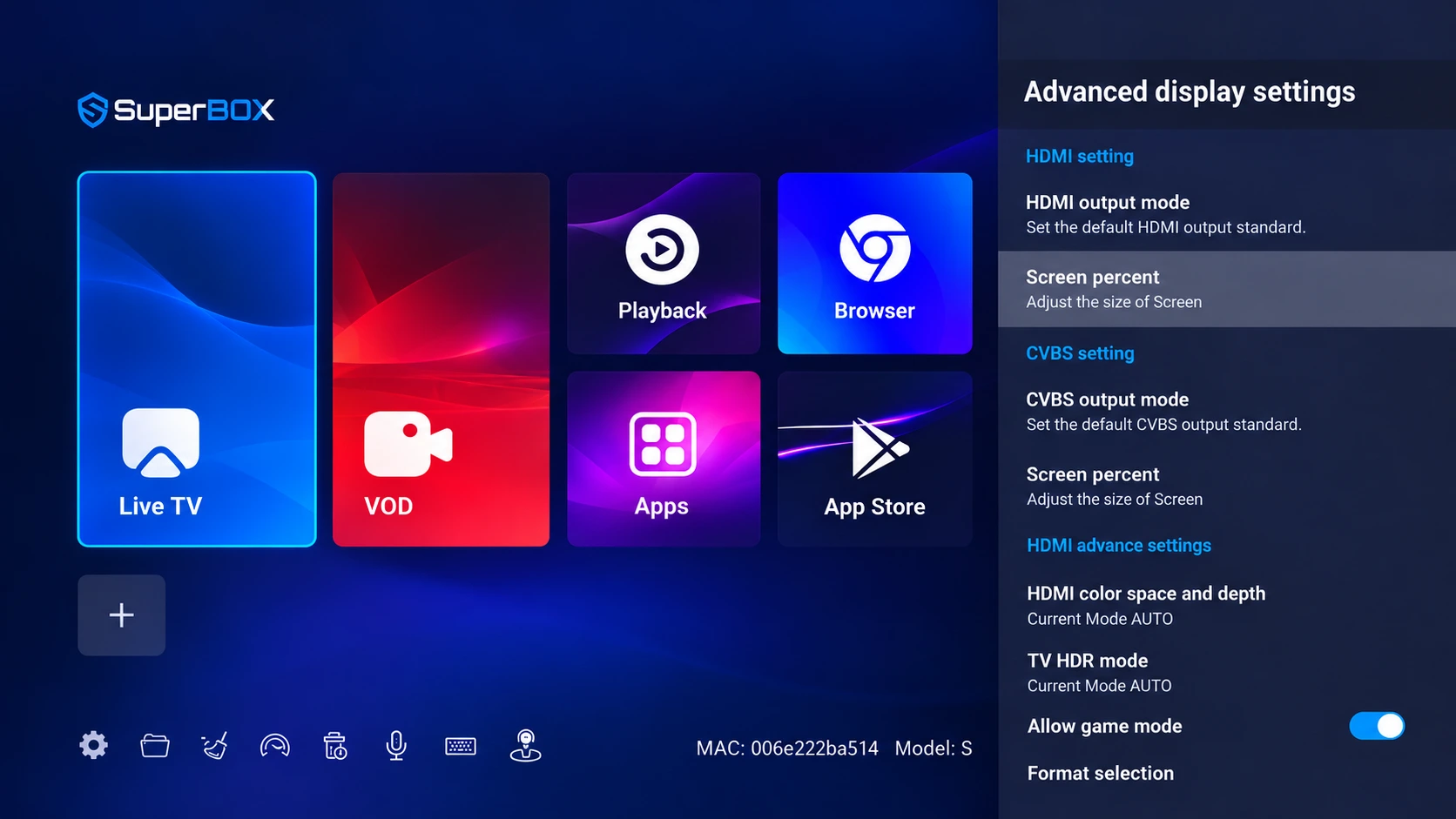
On advanced media consoles like the SuperBox S8 series, navigating into the advanced display menu reveals options for YCbCr420, YCbCr422, or RGB color formats. If your 4K television supports HDR, selecting YCbCr420 10-bit or YCbCr422 10-bit eliminates ugly color banding in evening skies, stadium lighting, and deep shadows.
 Cinema Flagship
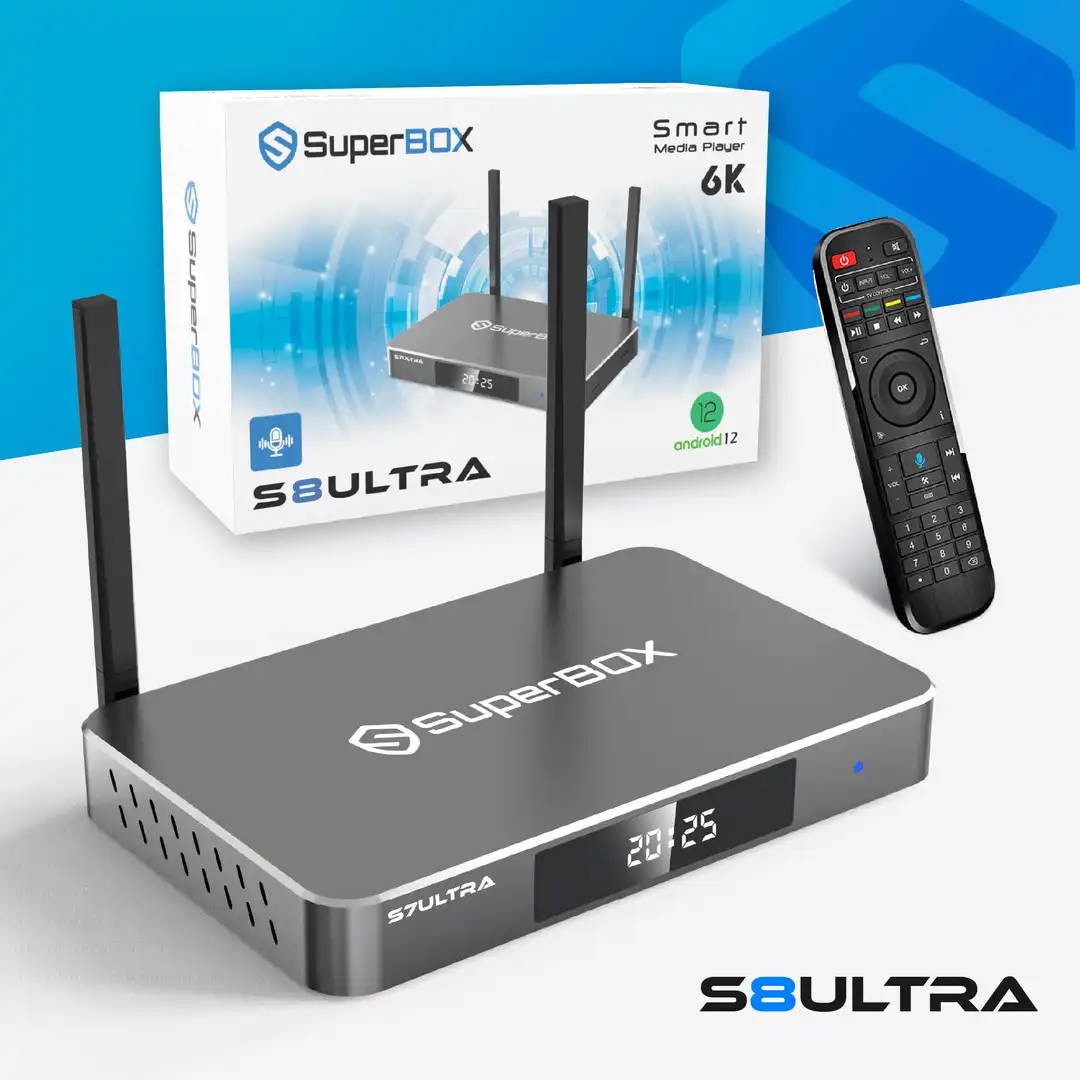
The ultimate 2026 flagship media player. Engineered with 128GB high-speed storage, 4GB RAM, Gigabit Ethernet, Quad-Screen Multi-Viewing, and the exclusive RC-200L Backlit Voice Remote with zero monthly subscription fees.
Deconstructing 6K and 8K Marketing Claims on Android Boxes
Many budget Android TV boxes boldly advertise 6K or 8K capabilities on their packaging. Consumers must understand the difference between internal hardware video decoding and actual physical HDMI display output.
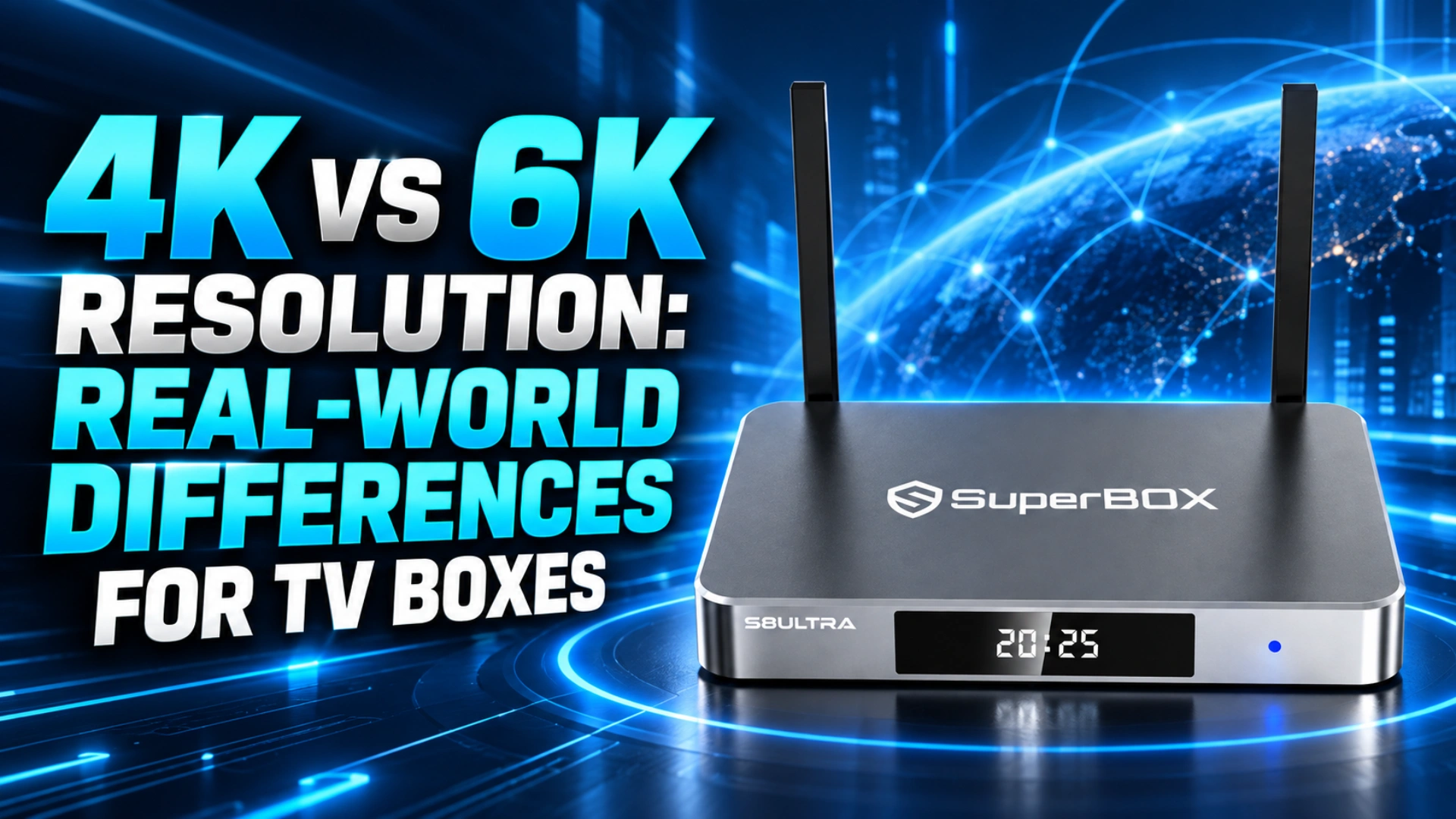
Flagship consoles like the SuperBox S8 feature powerful multi-core graphics processors that can decode video files recorded in 6K resolution at 60 frames per second using efficient H.265 compression. However, the box intelligently downsamples that pristine video feed to output a reference-grade 4K 60Hz signal through its HDMI 2.1 port. True native 8K streaming requires specialized multi-thousand-dollar television displays and offers negligible visual benefits at typical living room viewing distances.
HDMI Cable Bandwidth and Handshake Stability
Even the most advanced TV box cannot deliver a stable 4K 60Hz HDR picture through a damaged or outdated HDMI cable. Transmitting high-bandwidth 4K 60Hz video with 10-bit HDR requires a continuous bandwidth throughput of 18 Gigabits per second.
Older HDMI 1.4 cables lack the bandwidth to carry this data stream, resulting in intermittent audio dropouts, flickering white speckles known as HDMI snow, or total loss of video handshake. Always utilize the certified high-speed HDMI cable included in the SuperBox retail box, or upgrade to a certified Premium High Speed HDMI 2.0b or Ultra High Speed HDMI 2.1 cable.
Step-by-Step Calibration Guide for SuperBox S8 Owners
Step 1: Access System Display Settings
Turn on your television and SuperBox S8 console. From the home screen, navigate to the Settings gear icon and select the Display preferences submenu.
Step 2: Set Screen Resolution to 4K 60Hz
Disable automatic display detection if your television experiences resolution jumping. Manually select 3840x2160p-60Hz from the resolution list to lock in fluid sixty-frame motion.
Step 3: Calibrate Screen Scale and OverScan
Select the Screen Position or Screen Scale option. Adjust the zoom slider until the white border alignment markers touch the exact outer edges of your television bezel, ensuring no interface elements are cropped.
Step 4: Verify Color Depth and HDR Mode
Navigate to Color Space settings and select YCbCr420 10-bit or Auto. Verify that your television HDMI port is set to Enhanced or Deep Color mode within your television primary picture menu.
Frequently Asked Questions
What happens if I set my Android TV box to a resolution higher than my TV supports?
Your television screen will display an “Out of Range” or black screen error. Most modern TV boxes will automatically revert to the previous working resolution after fifteen seconds if you do not confirm the prompt.
Is 4K 60Hz noticeably better than 4K 30Hz for watching sports?
Yes, live sports broadcasts feature rapid camera pans and high-velocity ball movement. At 30Hz, motion appears jittery and stuttered, whereas 60Hz delivers smooth, lifelike broadcast motion.
Does setting an Android TV box to 4K consume more internet bandwidth?
Streaming 4K video consumes more network bandwidth (typically 15 to 25 Mbps) than 1080p streams. However, setting the box output resolution to 4K while streaming a 1080p channel does not increase internet data usage; the box simply upscales the video locally.
Can an HDMI cable cause flickering or black screens on a 4K TV box?
Yes, inadequate HDMI bandwidth from aging or substandard cables causes digital handshake failures, audio dropouts, and intermittent black screens during 4K 60Hz playback.
What is the difference between 6K decoding and 4K output on SuperBox S8?
The SuperBox processor can decode ultra-high-bitrate 6K media files smoothly, but outputs a standardized, pristine 4K 60Hz signal through its physical HDMI port to ensure universal television compatibility.
Why do live TV channels look softer than 4K on-demand movies?
Most live broadcast television networks still transmit original broadcast feeds in 720p or 1080i high definition. Your TV box upscales these feeds to 4K, but native 4K on-demand movies will always appear significantly sharper.
Should I turn on Auto Frame Rate (AFR) switching on my media player?
Auto Frame Rate switching automatically synchronizes your display refresh rate to match 24fps film content or 60fps sports. If your TV switches without annoying screen blackouts, enabling AFR delivers optimal film motion.
What is overscan and how do I fix cropped edges on my TV screen?
Overscan is a legacy television feature that enlarges picture borders. You can fix cropped edges by adjusting the Screen Scale setting in the SuperBox display menu or setting your television aspect ratio to “Just Scan” or “Screen Fit.”
Does the SuperBox S8 support High Dynamic Range (HDR) colors?
Yes, the SuperBox S8 supports advanced HDR decoding, delivering vibrant contrast, deeper black levels, and expanded color volume on compatible HDR televisions.
Where can I get support if my SuperBox display settings cause a black screen?
If you cannot navigate back to the display menu, connect the box to an alternate display or contact authorized customer support at superboxs8.com for quick hardware reset instructions.
Final Thoughts
Proper display matching between your Android TV box and television panel unlocks the true visual quality of your home theater. Calibrating refresh rates, HDMI handshakes, and color depth ensures vivid colors without motion jitter or interface blur.
Modern hardware decoders on devices like the SuperBox S8 series process high-bitrate video effortlessly across 4K and 6K screens. Fine-tuning your display settings today creates an immersive viewing atmosphere for every movie and sporting event.
The article was updated on:
