
Knowledge SuperBox S7
SuperBox S7 Setup Guide: How to Use S7 Pro, Max, & Ultra





Setting up your SuperBox S7 takes less than five minutes whether you own the SuperBox S7 Pro, S7 Max, or S7 Ultra. By following a simple sequence—connecting your HDMI cable and Type-C power adapter, connecting to high-speed internet, pairing the Bluetooth 5.2 backlit voice remote, and installing the core Blue TV and Blue VOD applications—your television transforms into a complete 6K home entertainment hub without monthly subscription fees.
Key Takeaways of this Guide:
- Complete setup guide covering all 3 models: SuperBox S7 Pro, S7 Max, and S7 Ultra.
- Plug-and-play installation connects via HDMI 2.1 and modern Type-C DC 5V/2A power in under 5 minutes.
- Pairing the Bluetooth 5.2 backlit voice remote activates smart AI voice commands and Google Assistant.
- Built-in App Store enables instant download of Blue TV (1,200+ Live Channels), Blue VOD (15,000+ Movies), and 7-Day Playback.
- Authentic S7 models from superboxs8.com include authorization code SP20250414002, 1-year replacement warranty, and 24/7 support.
Step 1: Connect HDMI cables and Type-C power supply
The initial physical connection takes less than two minutes. Connect the included high-speed HDMI cable from the HDMI port on your SuperBox S7 (Pro, Max, or Ultra) to an available HDMI input on your television screen.
If you are still deciding which device best suits your household, checking our comprehensive ranking of the best SuperBox model to buy compares the S7 lineup directly against the latest S8 series.
Step 2: Connect to Wi-Fi or Gigabit Ethernet and calibrate display
High-speed internet is essential for smooth video playback. To understand how the hardware processes incoming IPTV data streams, learning how does SuperBox work helps you optimize network bandwidth and eliminate buffering during live sports. If using wireless networking, select your Wi-Fi network, enter your password, and connect to the 5GHz frequency band.
During the initial setup wizard, the system prompts you to calibrate the display size. Use the Up and Down directional arrows on your remote until the blue corner markers align perfectly with the four edges of your television screen. A display calibration value of 96% provides the best fit for most TV panels.
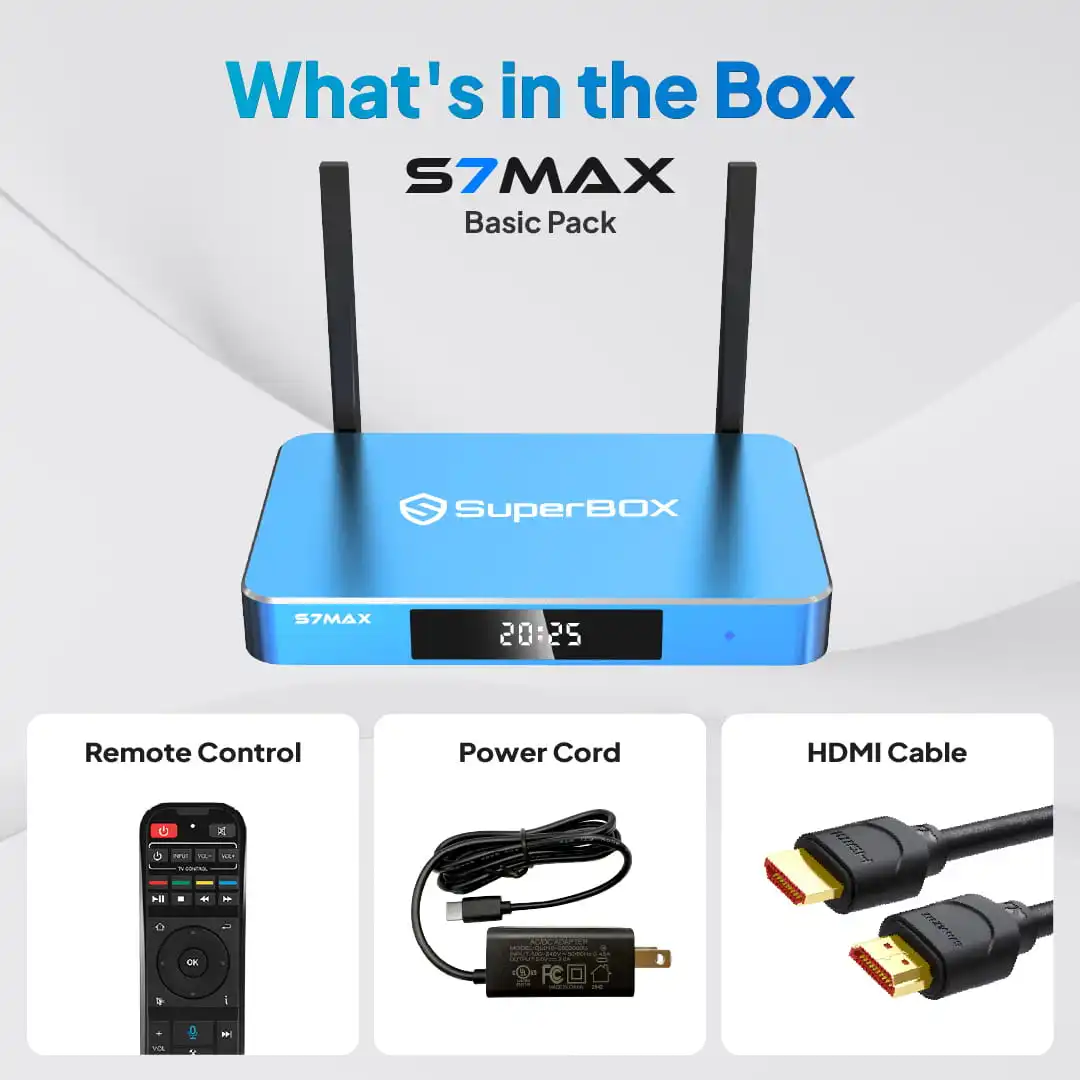 Best-Seller S7 Value
SuperBox S7 Max 6K Android TV Box
The most popular S7 series model powered by 4GB RAM, 64GB Storage, 7-Day Time Shift playback, 1000Mbps Gigabit Ethernet, and Bluetooth 5.2 Backlit Voice Remote with 1,200+ Live Channels.
Step 3: Pair the Bluetooth 5.2 backlit voice remote
Pairing your remote via Bluetooth 5.2 enables Google Assistant AI voice commands and eliminates the need to point the remote directly at the TV box during everyday use.
Follow these steps to pair your S7 remote:
- Press the Mic / Voice button on the remote control.
- Point the remote directly toward your SuperBox S7.
- Press and hold both the OK and Return buttons simultaneously for approximately 8 seconds.
- Release the buttons when the remote’s indicator light flashes and the on-screen prompt confirms Bluetooth pairing.
Pairing via Bluetooth 5.2 allows the backlit remote to transmit voice commands anywhere in the room without requiring a direct line of sight to the box.
Step 4: Download and install essential streaming applications
All core streaming applications on the SuperBox S7 are installed through the centralized built-in App Store. Downloading your first application automatically registers your hardware MAC address and activates your 1-year factory warranty.
Because SuperBox ships from the factory as an open Android mini PC, understanding is SuperBox legal confirms that personal IPTV streaming adheres fully to standard consumer hardware regulations.
To install your entertainment apps:
- Open the Green App Store (Martian Android icon) from the main home screen to install the App Store engine.
- Once updated, launch the Blue App Store and review the standard disclaimer.
- Download the essential apps: Blue TV (live sports and broadcasts), Blue VOD (movies and series), Playback (for viewers exploring can you record on a SuperBox via 7-Day Time Shift), Backup TV, and the TV ROM Updater.
- Verify that each installed application displays a green checkmark confirming successful installation.
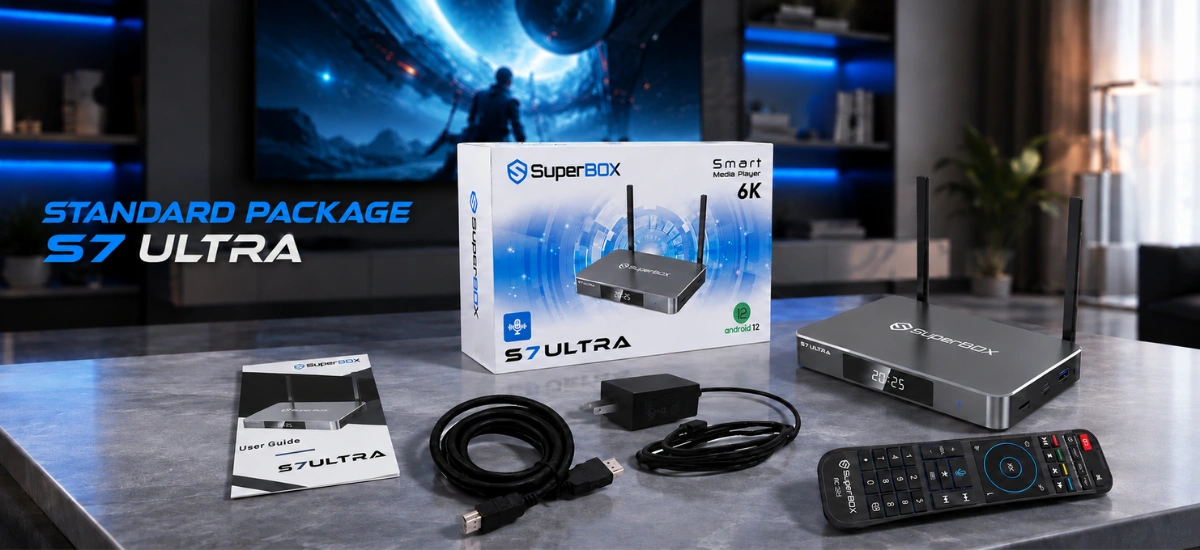 S7 Flagship Storage
SuperBox S7 Ultra 6K TV Box
High-capacity S7 performer equipped with 4GB RAM, massive 128GB Storage, metal alloy cooling, 7-Day Time Shift, Gigabit LAN, and Bluetooth 5.2 with zero monthly subscription fees.
Step 5: Pin apps to home screen and configure time zone
Customizing your home screen shortcuts and setting your local time zone ensures convenient navigation and accurate Electronic Program Guide (EPG) schedules.
Follow these quick configuration steps:
- Pin Apps to Home Screen: Click the “+” (Add) icon at the bottom of the home screen, then select Blue TV, Blue VOD, Playback, and Backup TV for one-click access.
- Set Local Time Zone: Navigate to Settings > Device Preferences > Date & Time and select your regional time zone (e.g., Eastern, Central, Pacific) to align TV guide schedules with live programming.
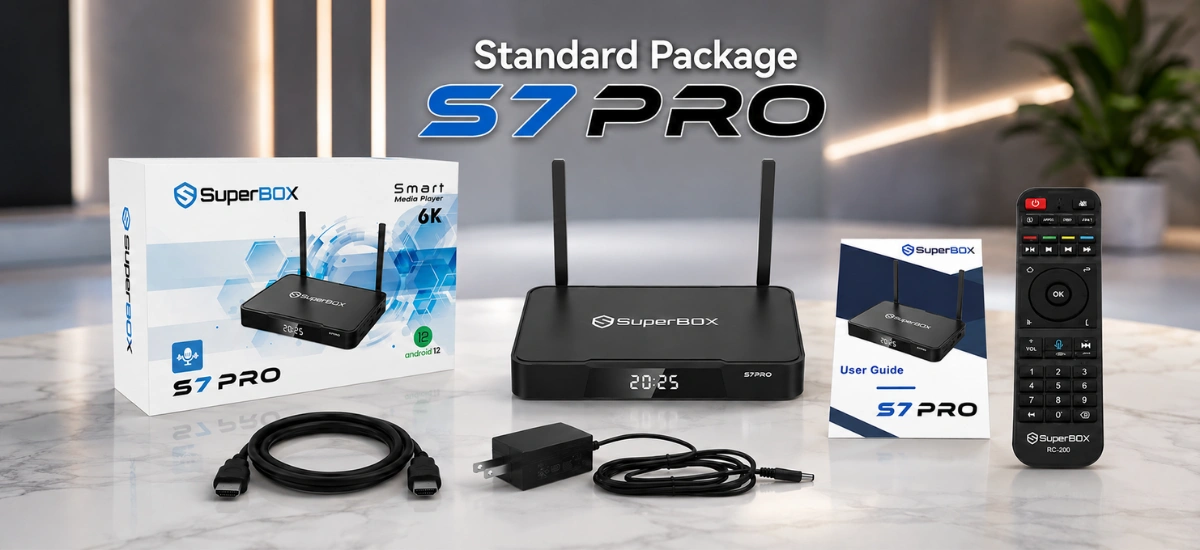 Budget S7 Value
SuperBox S7 Pro 6K Android TV Box
Accessible S7 series entry model featuring 4GB RAM, 32GB Storage, 7-Day Time Shift, Gigabit Ethernet, and Bluetooth 5.2 voice navigation for complete cord-cutting freedom.
Maintenance tips to keep your SuperBox S7 running fast
Regular maintenance ensures your SuperBox S7 Pro, Max, or Ultra maintains peak processing speed and responsiveness:
- Clear System Cache Weekly: Click the Sweeper / Cleaner icon on the home screen once a week to clear temporary system junk data.
- Check for App Updates: Open the Blue App Store periodically. If any application displays a recycling icon instead of a green checkmark, click it to download the latest update.
- Update System ROM First: Always install updates for the App Store and TV ROM Updater before updating other media applications.
Troubleshooting common SuperBox S7 setup issues
If you encounter any setup challenges or intermittent SuperBox buffering issues, apply these quick verified solutions:
- Remote Won’t Pair via Bluetooth: Hold OK + Return for a full 8 to 10 seconds while holding the remote within 3 feet of the box until the indicator light flashes.
- Wi-Fi Network Fails to Connect: Verify password entry accuracy, restart your router for 2 minutes, or connect via a Gigabit Ethernet cable.
- Screen Borders Cut Off: Go to Settings > Display > Screen Zoom and adjust scaling to 96% to fit TV bezels.
Why buying authentic SuperBox hardware matters
Purchasing authentic hardware through an authorized distributor ensures factory warranty protection, verified MAC serial numbers, and stable over-the-air firmware updates. Counterfeit devices lack official authorization and customer support.
At superboxs8.com, we operate under official manufacturer authorization code SP20250414002. Customers can apply a verified SuperBox discount code at checkout, with every order including a 30-day money-back guarantee, a full 1-year hardware replacement warranty, and free express 2-to-5-day delivery from domestic California and New Jersey fulfillment centers.
Why Buy From superboxs8.com?
Authorized Official SuperBox Online Distributor (Authorization Code: SP20250414002)
Frequently asked questions about setting up SuperBox S7
Here are direct answers to common questions about setting up and using SuperBox S7 models.
How do you pair the SuperBox S7 remote control?
To pair the Bluetooth 5.2 remote, press the Mic button, then press and hold the OK and Return buttons simultaneously for 8 seconds until the remote’s LED indicator flashes and the screen confirms connection.
Do you need to create an account to activate SuperBox S7?
No account creation or password registration is required. SuperBox S7 authenticates automatically through its factory-assigned MAC address when you download apps from the App Store.
What is the best screen calibration percentage for SuperBox S7?
For most modern high-definition and 4K televisions, setting the display calibration scale to 96% aligns the on-screen interface perfectly with the television borders.
The article was updated on:
