
Knowledge SuperBox
Can You Record on a SuperBox? Complete Recording Guide & Methods [2026]





Yes, you can record live shows and replay sports broadcasts on a SuperBox TV Box using built-in cloud playback features, external USB flash drives, HDMI capture cards, or standalone DVR systems. With the integrated 7-Day Time Shift Playback available on SuperBox hardware, you can easily catch up on missed television broadcasts up to seven days later without purchasing separate recording equipment.
Key Takeaways of this Guide:
- SuperBox supports multiple recording and replay methods including native 7-Day Playback, USB storage, and HDMI capture.
- The 7-Day Time Shift feature automatically archives live TV broadcasts without taking up local internal device storage.
- Connecting an external USB 3.0 flash drive or hard drive enables direct local recording on supported streaming apps.
- HDMI capture cards paired with OBS Studio allow seamless high-definition 1080p and 4K recording directly to your PC.
- Purchasing authentic SuperBox models from superboxs8.com guarantees official firmware with 7-Day Playback and a 1-year warranty.
Can you record live TV on a SuperBox?
You can record live television and replay past broadcasts on a SuperBox through multiple convenient methods depending on your device generation and storage preferences. While traditional cable receivers require costly monthly DVR equipment rentals, SuperBox integrates cloud-based Time Shift technology alongside standard USB recording and HDMI video pass-through capabilities.
Because recording live broadcasts for personal, non-commercial home viewing is protected under consumer fair use, exploring is SuperBox legal confirms how open Android hardware complies with broadcasting standards.
Method 1: Use the built-in 7-Day Time Shift and Playback feature
The most convenient and storage-efficient way to watch previously aired live programming on SuperBox is using the integrated Playback application. To understand how cloud servers buffer and route historical streams, learning how does SuperBox work explains its automated IPTV transmission protocols.
Follow these steps to access 7-Day Playback on your SuperBox:
- Open the Playback application from your SuperBox home screen.
- Select your desired channel category (such as Sports, News, or Entertainment).
- Scroll through the Electronic Program Guide (EPG) to locate the program aired over the past 7 days.
- Press the OK button on your remote control to start instant playback with pause and rewind controls.
For heavy streamers requiring massive local storage for offline apps alongside Time Shift cloud recording, our ranking of the best SuperBox model to buy compares 128GB flagship models across the S8 and S7 series.
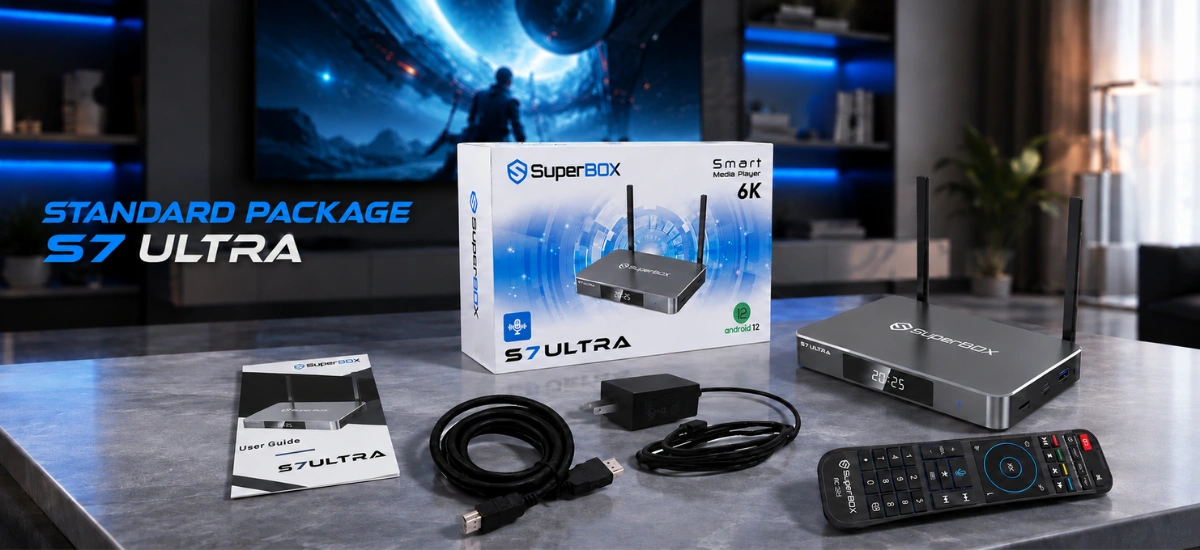 S7 Flagship Storage
SuperBox S7 Ultra 6K TV Box
Premium S7 series performer with 4GB RAM, massive 128GB internal storage, 7-Day Time Shift playback, metal alloy cooling, and Bluetooth 5.2 Backlit Voice Remote for seamless live TV replaying.
Method 2: Record locally using a USB flash drive or external storage
If you prefer saving permanent video files directly to removable media, you can connect an external USB flash drive or hard drive to the SuperBox USB 3.0 port. If you are configuring your device for the first time, our complete SuperBox S7 setup walkthrough covers proper system preferences and app installation.
Follow these guidelines when recording to external USB storage:
- Format your USB flash drive or external hard drive in FAT32 or exFAT on your computer before inserting it into the SuperBox.
- Plug the storage drive into the high-speed USB 3.0 port on the side or rear panel of the SuperBox.
- In your streaming application, navigate to settings and set the default recording path to your external USB drive.
- Press the Record button on your remote or select Record on the on-screen menu during live playback.
| Recording Resolution | Estimated File Size / Hour | Recommended Storage Drive | Compatible File System |
|---|---|---|---|
| 720p Standard HD | 1.0 GB – 1.5 GB | 32GB USB 3.0 Flash Drive | FAT32 / exFAT |
| 1080p Full HD | 2.0 GB – 3.5 GB | 64GB / 128GB Flash Drive | exFAT / NTFS |
| 4K Ultra HD | 5.0 GB – 8.0 GB | 500GB+ External Hard Drive | exFAT / NTFS |
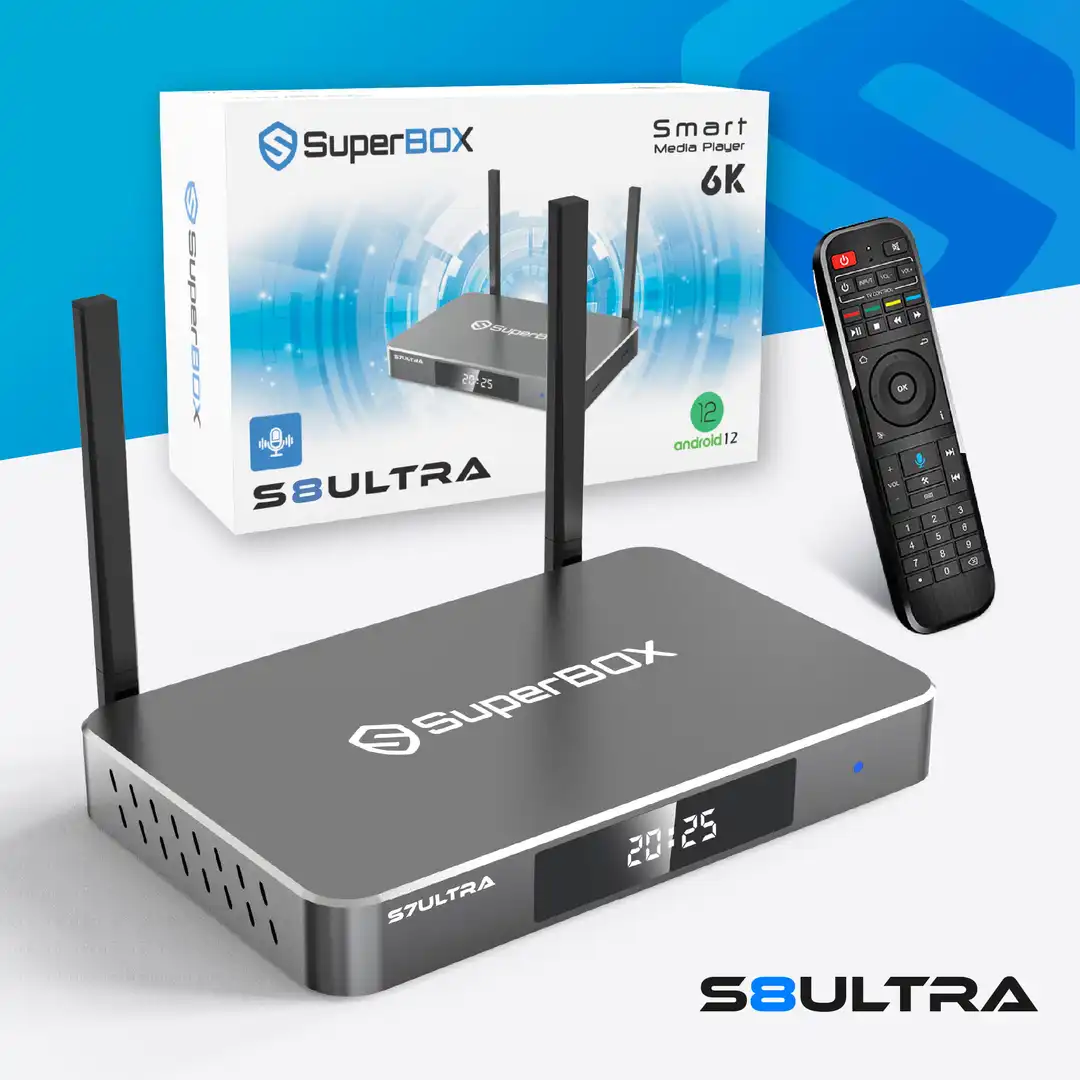 2026 Flagship Winner
SuperBox S8 Ultra 6K TV Box
The ultimate home entertainment player engineered with Titanium Gray Aluminum alloy, 4GB RAM, 128GB Storage, Gigabit Ethernet, and Bluetooth 5.2 Backlit Voice Remote. Over 1,200+ Live Channels and 15,000+ Movies (VOD) free forever.
Method 3: Record using an HDMI capture card and computer
For content creators, sports archivists, and home theater enthusiasts who want uncompressed master recordings, connecting your SuperBox to a computer via an HDMI capture card provides complete flexibility.
Follow these steps to record SuperBox via PC:
- Connect the HDMI output cable from your SuperBox to the HDMI input of a USB capture card.
- Plug the capture card into a USB 3.0 port on your desktop or laptop computer.
- Connect the HDMI pass-through output from the capture card to your television screen.
- Launch recording software such as OBS Studio, select the capture card as a video input source, and press Start Recording.
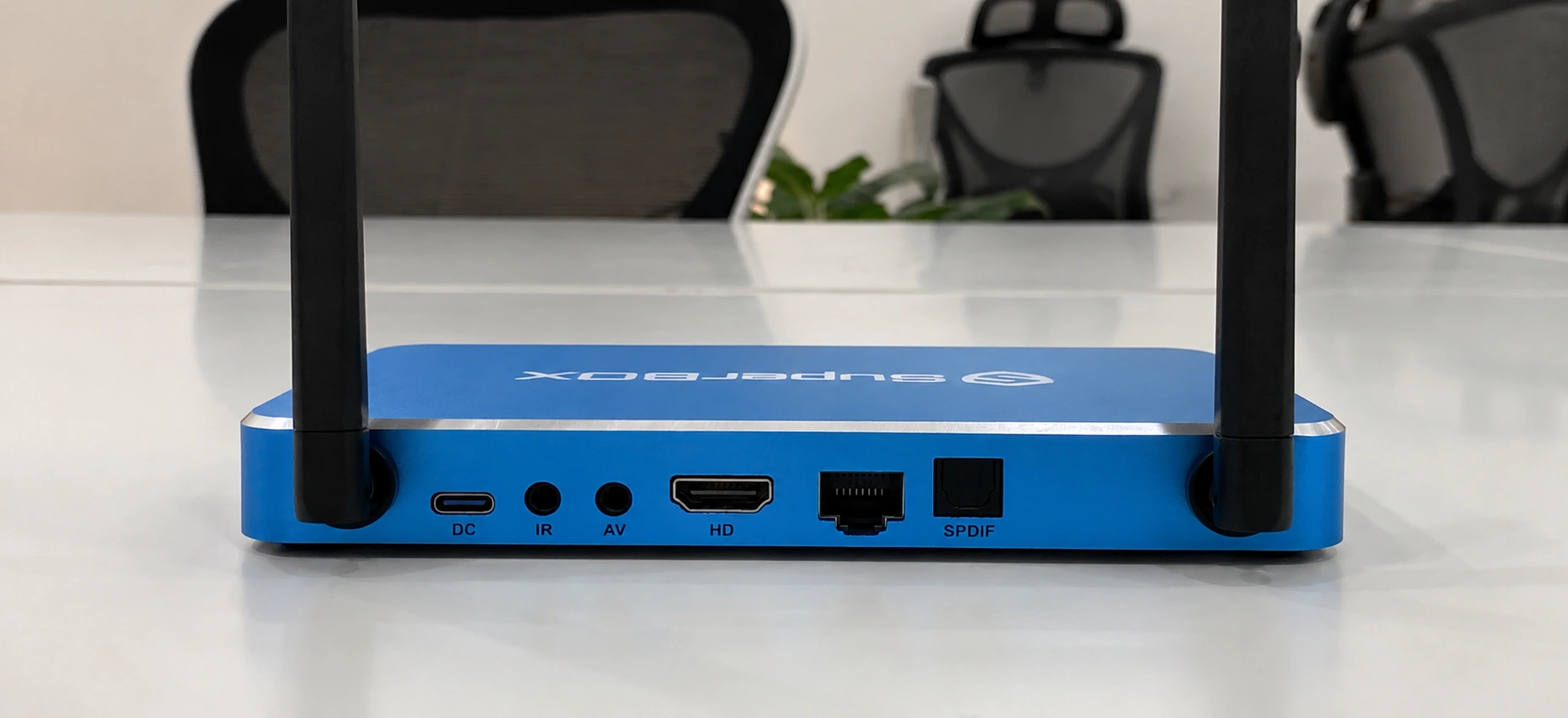
Combining SuperBox with an HDMI capture card gives you total control to record, edit, and archive live sports broadcasts in pristine Full HD or 4K quality.
Method 4: Connect to a standalone external DVR receiver
If you prefer an independent recording appliance that operates without a computer, you can route your SuperBox video signal through a standalone hardware DVR recorder. Hardware DVR devices save recordings directly to internal hard disks or SD cards with programmable timer controls.
Connect the HDMI output of your SuperBox directly into the DVR input, configure the recording schedule on the DVR menu, and export video files whenever needed.
Best practices for stable and high-quality recording
Following these practical setup guidelines and our proven fixes for SuperBox buffering issues will prevent buffer interruptions and ensure crystal-clear video recordings:
- Use a Wired Gigabit Connection: Connect your SuperBox via a 1000Mbps Gigabit Ethernet cable to eliminate wireless interference during recording.
- Verify Available Storage: Always check that your USB drive has sufficient free space before scheduling a long sports event.
- Restart Device Periodically: Navigate to Settings > Device Preferences > Restart once a week to clear system cache and maximize processing speed.
- Close Background Applications: Close unused Android apps before recording to dedicate all 4GB of RAM to real-time video capture.
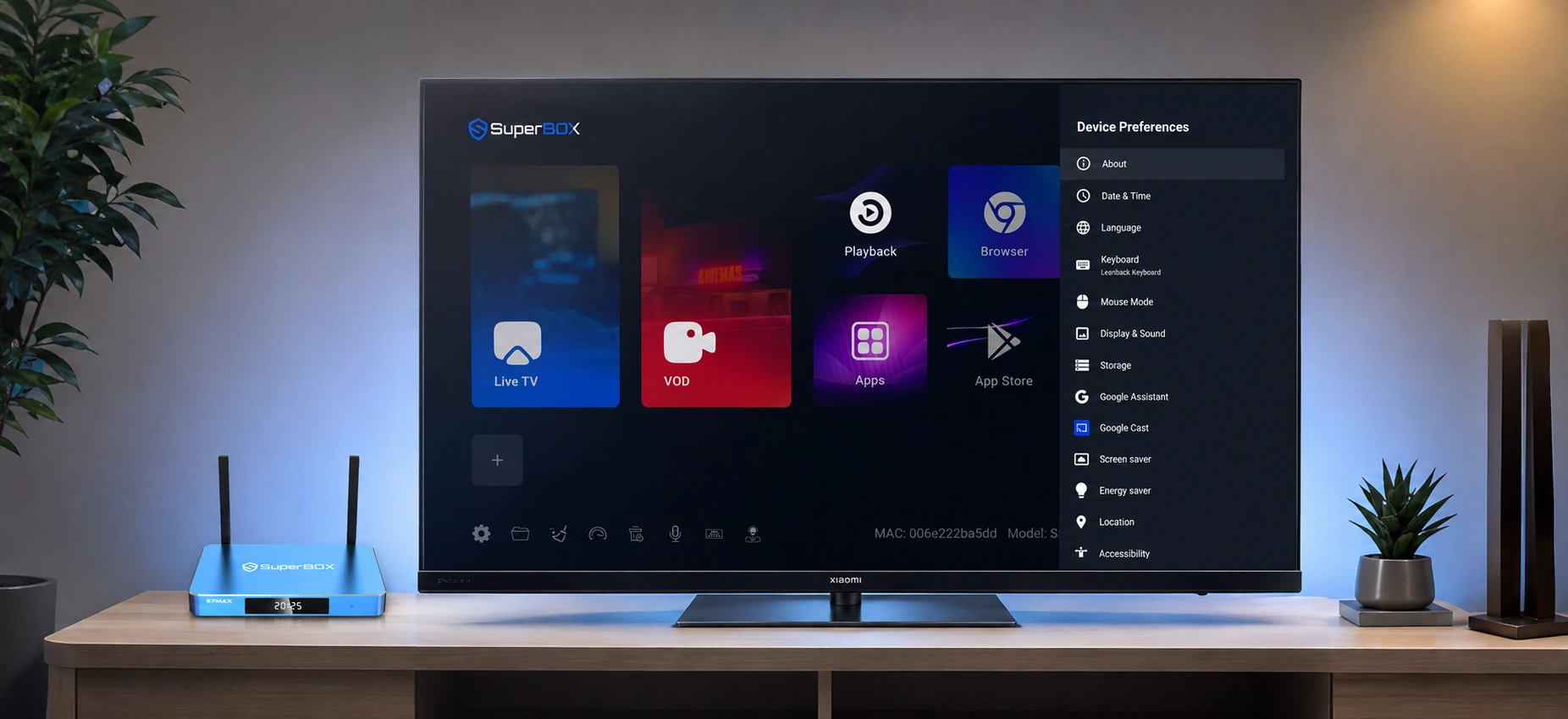
Why buying authentic SuperBox hardware matters
Purchasing genuine hardware through an authorized distributor ensures factory firmware stability, full 7-Day Playback access, and direct warranty coverage. Counterfeit units often lack registered MAC authentication, disabling cloud playback functions.
At superboxs8.com, we operate under official manufacturer authorization code SP20250414002. Customers can apply a verified SuperBox discount code at checkout, with every order including a 30-day money-back guarantee, a full 1-year hardware replacement warranty, and free express 2-to-5-day delivery from domestic California and New Jersey fulfillment centers.
Why Buy From superboxs8.com?
Authorized Official SuperBox Online Distributor (Authorization Code: SP20250414002)
Frequently asked questions about recording on SuperBox
Here are direct answers to common questions regarding recording live TV on SuperBox devices.
Can you schedule recordings in advance on a SuperBox?
While local recording is triggered manually or via connected DVR systems, the built-in 7-Day Time Shift feature automatically archives all broadcasts on supported channels, eliminating the need to set complex recording timers in advance.
How much USB storage is needed to record a live sporting event?
A typical 3-hour sporting event in 1080p Full HD requires approximately 6GB to 10GB of storage space. A 64GB or 128GB USB 3.0 flash drive is recommended for multiple recordings.
Does the 7-Day Time Shift feature require internet access?
Yes, because Time Shift retrieves historical broadcast streams directly from cloud servers, an active broadband internet connection is required for playback.
The article was updated on:
