
Knowledge SuperBox
SuperBox Devices Abnormal Fix and Error Repair Guide in 2026





Encountering an unexpected error dialog box stating “Device Abnormal”, “Abnormal System Status”, or “Playback Service Abnormal” when launching your favorite television app can disrupt an evening of relaxation. This warning prompt typically freezes the application interface, preventing live television channels from loading or causing on-demand video streams to drop unexpectedly.
Fortunately, an abnormal status alert does not mean your streaming hardware is defective or permanently broken. In the vast majority of cases, this prompt indicates a temporary network handshake delay, corrupted cache files, an unsynchronized system clock, or local domain name resolution filtering.
Quick Check: The “Device Abnormal” prompt is primarily caused by local DNS routing failures, network clock desynchronization, or cached data corruption within the Blue TV or Blue VOD applications. To fix it immediately, navigate to Android Settings, verify that your date and time match network-provided time, change your network DNS to Google Public DNS (8.8.8.8), and clear application cache in the Apps menu.
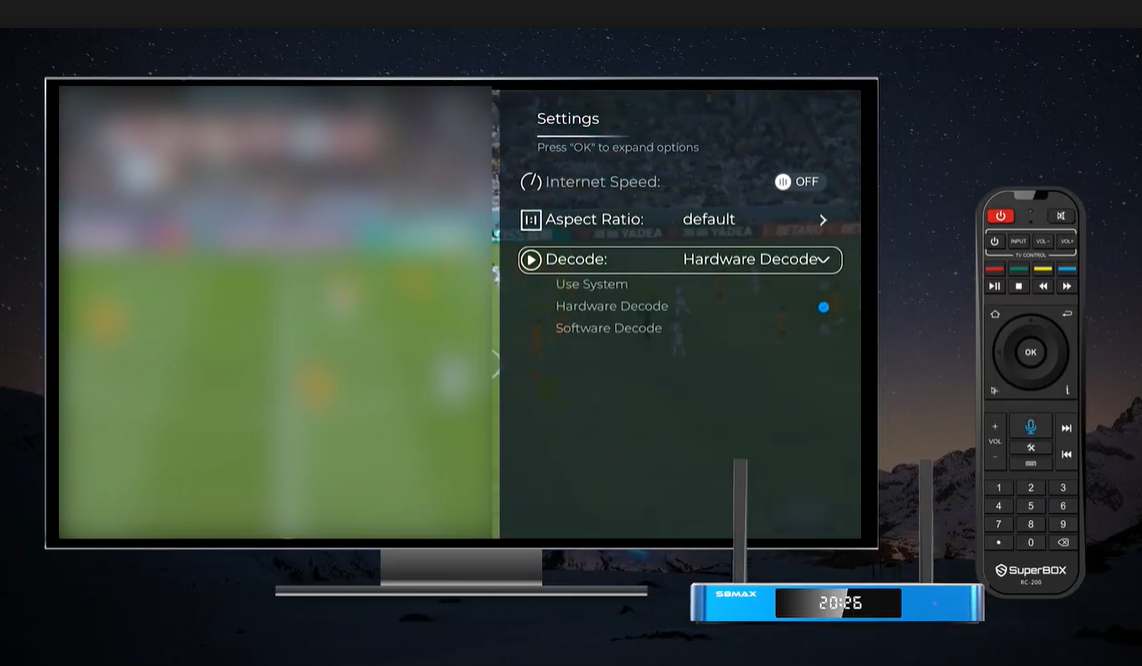
Diagnostic Breakdown on Why SuperBox Displays Abnormal Status
The SuperBox operating system constantly communicates with distributed server networks to authenticate access, verify channel licenses, and route high-bitrate video streams. When any component of this digital chain fails to respond within set latency thresholds, the application generates a protective abnormal status notification.
The comparison table below details the common technical causes of abnormal device errors, their symptoms, and the corresponding recovery actions.
| Underlying Cause | Primary Observable Symptom | System Component Affected | Resolution Procedure |
|---|---|---|---|
| System Clock Desynchronization | App crashes immediately on startup with security token handshake error | Android System Time / SSL Engine | Sync system clock with network-provided time in Date & Time menu |
| Local ISP DNS Resolution Failure | Channel directory loads, but individual video streams show playback error | Domain Name Resolver (DNS) | Manually assign public DNS servers (8.8.8.8 and 8.8.4.4) |
| Corrupted Application Cache Files | App freezes on loading splash screen or displays invalid data prompt | Internal App Storage Partition | Clear application cache and app data in Settings > Apps submenu |
| Outdated Application Build Version | Specific channels fail while general system connectivity remains normal | Application Binary (APK) | Update or reinstall the application via the home screen App Store |
| Local Network Gateway IP Conflict | Intermittent buffering followed by sudden device abnormal disconnection | Wi-Fi / Ethernet DHCP Lease | Power cycle home internet modem, router, and TV box concurrently |
Detailed Analysis of the Primary Error Triggers
Understanding how these software elements interact helps you apply the correct solution without unnecessary factory resets.
System Clock and Cryptographic Handshake Failures
Modern internet security protocols rely heavily on Transport Layer Security (TLS) certificates to encrypt communication between client hardware and cloud servers. These cryptographic certificates are strictly time-sensitive.
If your SuperBox loses power during a storm or remains unplugged for several weeks, its internal real-time clock may desynchronize. When the streaming application attempts to connect to content distribution servers with a system time that lags behind reality, the server security gateway rejects the handshake as an invalid session, triggering the “Device Abnormal” alert. Ensuring your device automatically pulls network-provided time resolves this immediately.
Internet Service Provider DNS Blocking and Filtering
Domain Name System (DNS) servers function as the address book of the internet, translating domain names into numeric IP addresses. Many regional internet service providers utilize restrictive default DNS resolvers that struggle to resolve media streaming hostnames or intentionally misroute high-bandwidth traffic during peak evening hours.
When your media player cannot resolve stream URLs, the application assumes the connection has been compromised and displays an abnormal prompt. Overriding your internet provider DNS by manually configuring Google Public DNS (8.8.8.8) or Cloudflare DNS (1.1.1.1) inside your network settings restores clean, uninhibited server routing.
Fragmented App Storage and Cache Corruption
Streaming video applications constantly download and overwrite temporary data packets, Electronic Program Guide (EPG) schedules, and graphic thumbnails to internal flash memory. Over months of heavy use, these temporary cache files can become fragmented or corrupted following sudden power losses.
When an application attempts to read a damaged local cache index, it generates a fatal memory exception that manifests on-screen as an abnormal status error. Clearing the application cache flushes out corrupted data fragments and allows the application to build a fresh, healthy index upon restart.
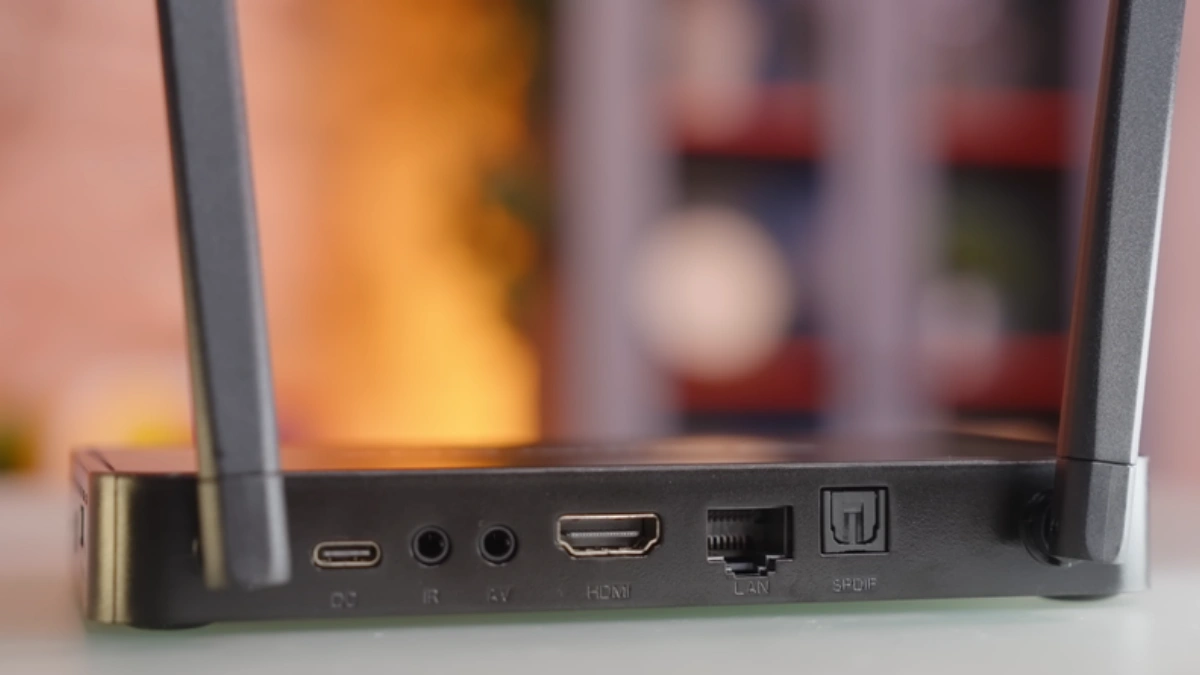
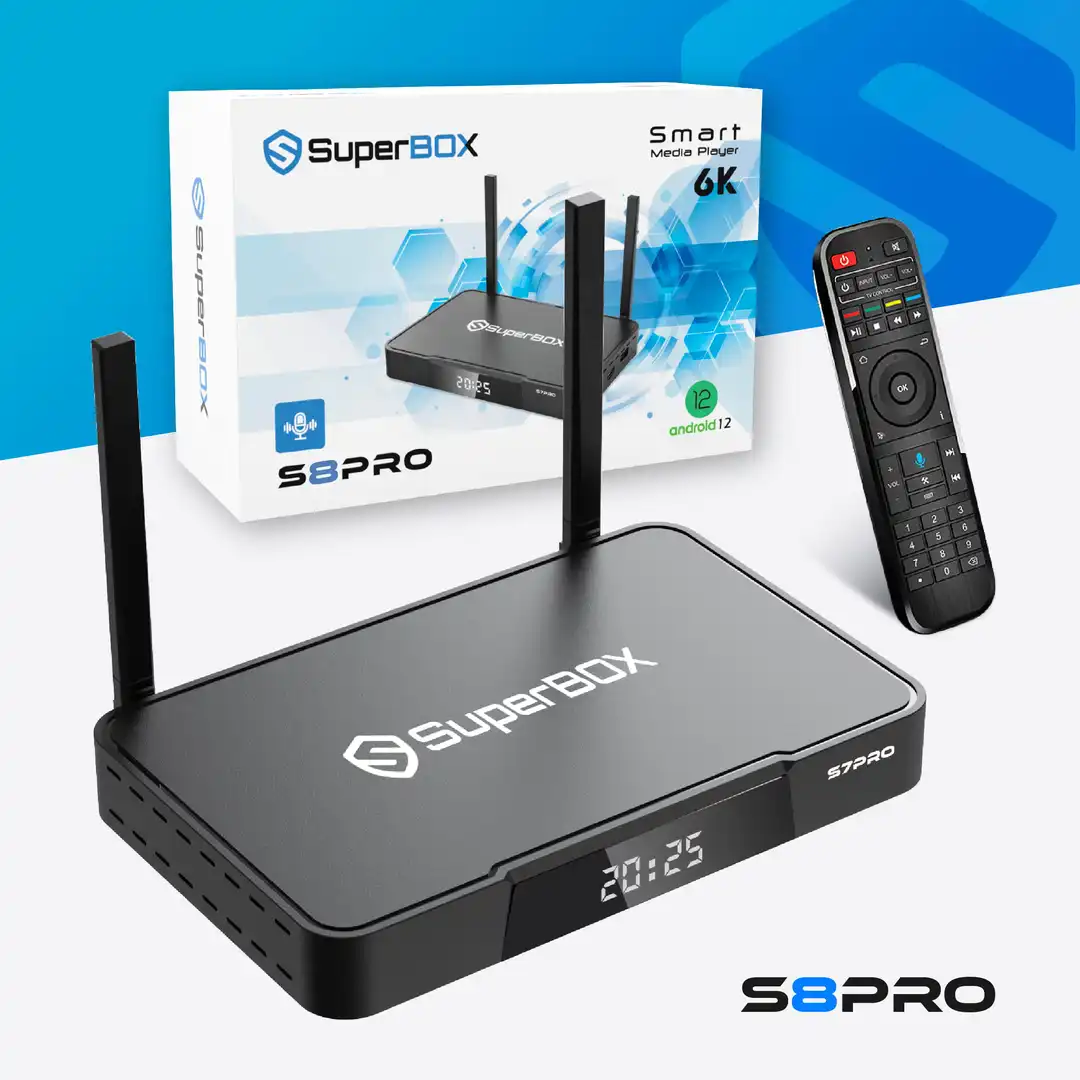 2026 Flagship
The 2026 flagship SuperBox S8 Pro delivers 4GB RAM, 32GB storage, Wi-Fi 6, 1000Mbps Gigabit Ethernet, 7-Day Cloud Playback, and seamless voice control with zero monthly subscription fees.
Step-by-Step Recovery Procedure to Clear the Abnormal Error
Follow these verified troubleshooting steps sequentially to restore normal streaming performance:
Step 1: Verify and Synchronize Network Time
From the SuperBox home screen, navigate to Settings > Device Preferences > Date & Time. Verify that “Automatic date & time” is toggled ON to “Use network-provided time.” Confirm that your selected Time Zone matches your actual geographical location.
Step 2: Clear Application Cache and Data
Go to Settings > Apps > See All Apps > Select the affected application (Blue TV or Blue VOD). Click “Force Stop”, then select “Clear Cache.” Next, select “Clear Data” and confirm the prompt. This will not delete your app; it simply refreshes local memory.
Step 3: Configure Static Google Public DNS
Navigate to Settings > Network & Internet > Select your active Wi-Fi or Ethernet connection. Select IP Settings > Change from DHCP to Static. Keep your existing IP address, Subnet Mask, and Gateway intact. Enter 8.8.8.8 for DNS 1 and 8.8.4.4 for DNS 2, then save changes.
Step 4: Perform a Full Network and Hardware Power Cycle
Power off your SuperBox and unplug its power adapter from the electrical socket. Unplug your home internet modem and Wi-Fi router. Wait two full minutes to clear router memory buffers. Plug your modem and router back in, wait until all network indicator lights turn solid green, then reconnect power to your SuperBox.
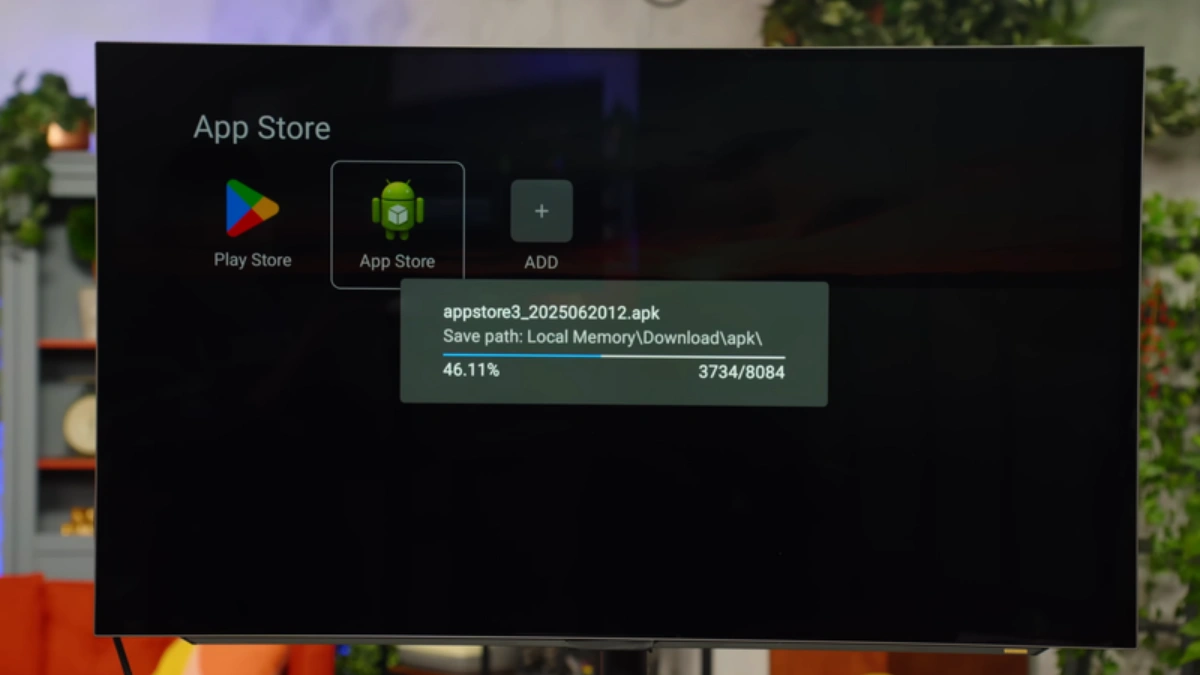
Step 5: Reinstall Application via the Home Screen App Store
If the error prompt continues to appear on a specific application, uninstall the app from the Apps menu. Return to the home screen, open the official App Store from the home screen, locate the latest release of Blue TV or Blue VOD, and click Install.

Preventive Maintenance to Keep Your SuperBox Running Smoothly
To prevent abnormal device prompts and system sluggishness in the future, observe these simple operational best practices:
Restart your SuperBox console at least once every week or two to flush out residual memory fragments. Avoid abruptly yanking the power cable out of the wall while the box is actively writing data; always shut down the device using the remote control power button first.
Ensure your television box is situated in a well-ventilated location where room air can circulate freely around its aluminum casing. Most importantly, always download official application updates directly from the official home screen App Store rather than unverified third-party websites.
Frequently Asked Questions About Device Abnormal Errors
Does the Device Abnormal error mean my box is permanently damaged?
No, the error is an operational software notification indicating a connection or data handshake interruption. The underlying hardware remains completely functional.
Will clearing application data delete my favorite channels list?
Clearing application data resets local settings to factory defaults, which may require you to re-add favorite channels to your favorites list.
Can a weak Wi-Fi signal cause the Device Abnormal notification?
Yes, severe packet loss caused by weak wireless signals or physical wall interference can trigger connection timeouts that cause the application to display an abnormal error.
Why does changing my DNS to 8.8.8.8 fix the problem?
Google Public DNS (8.8.8.8) provides faster, unrestricted domain name resolution, bypassing regional internet provider filters that block media server addresses.
What should I do if the error persists after following all steps?
If the error does not resolve after completing all steps, contact authorized customer support at superboxs8.com for direct backend server account verification.
How often should I check for application updates in the App Store?
We recommend checking the official home screen App Store once every month to ensure you are running the latest, most stable software builds.
Can an active VPN connection trigger the abnormal status alert?
Yes, certain VPN servers have IP addresses that are flagged by cloud firewalls, which can block authentication and cause an abnormal status warning.
Does the SuperBox S8 support wired Ethernet for better stability?
Yes, connecting your SuperBox directly to your router using a physical Ethernet cable provides maximum connection stability and eliminates wireless packet drops.
Can a faulty power adapter cause system abnormal behavior?
Yes, an unstable or third-party power adapter that delivers fluctuating voltage can cause processor instability and data write errors; always use the official power supply.
How do I contact official North American technical support?
You can reach our dedicated California support team through superboxs8.com via live WhatsApp chat, telephone hotline, and support ticket email.
Final Thoughts on Fixing Abnormal Device Errors
System status irregularities and playback interruptions on Android TV hardware are almost always solvable through methodical network troubleshooting and application cache maintenance. Following structured verification procedures prevents unnecessary factory resets and preserves your customized viewing preferences.
Regular network optimization and proper device ventilation keep your media player performing at peak efficiency. Consistent system care ensures your SuperBox streaming hardware delivers flawless high-definition entertainment every single day.
The article was updated on:
