
Knowledge SuperBox
How to Set Up Voice Control on S7 Remote Pairing & Settings?





Operating your television using convenient voice commands transforms everyday living room entertainment. With the SuperBox S7 voice control system, you can search for movie titles, launch streaming applications, and change television channels without typing tedious letters on an on-screen keyboard. However, because the voice remote communicates using Bluetooth technology rather than simple infrared signals, pairing it correctly during initial setup is essential. At superboxs8.com, our technical team prepared this straightforward, step-by-step tutorial to guide you through remote pairing, microphone setup, and optimal voice search commands.
Quick Voice Setup Summary
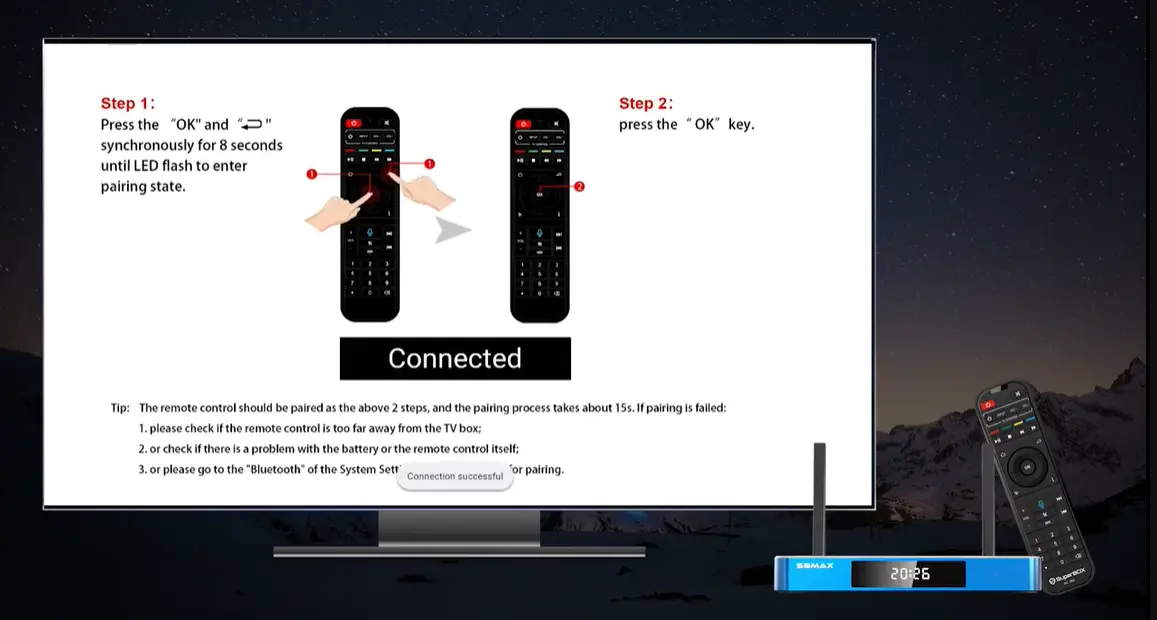
Pairing Key Combination: Press and hold the OK button and Return/Back button simultaneously for about 8 seconds until the indicator light blinks to enter Bluetooth pairing mode.
Settings Navigation: Go to Settings > Remotes & Accessories > Add Accessory on your television screen to finalize the Bluetooth connection.
Backlight Control: On the SuperBox S7 Max and S7 Ultra backlit remotes, press OK and 0 together to turn the key backlighting on or off (the S7 Pro includes a standard non-backlit voice remote).
SuperBox S7 Voice Remote Features and Model Differences
The SuperBox S7 remote control utilizes dual-mode technology. Out of the box, it operates standard infrared (IR) signals for power and volume, but voice command functionality requires a direct Bluetooth connection to transmit microphone audio data to the television box. Once paired via Bluetooth, you no longer need to aim the remote directly at the television box; you can control playback from anywhere in the room.
While voice search capabilities are identical across all SuperBox S7 models, remote illumination features vary slightly depending on your specific hardware tier.
| SuperBox Model | Voice Remote Included | Backlit Remote Feature | Pairing Method |
|---|---|---|---|
| SuperBox S7 Pro ($305.00 USD) | Bluetooth Voice Remote | Non-backlit Standard Remote | Hold OK + Return/Back for ~8 seconds |
| SuperBox S7 Max ($339.00 USD) | Backlit Voice Remote | Illuminated Keys (OK + 0 Toggle) | Hold OK + Return/Back for ~8 seconds |
| SuperBox S7 Ultra ($381.00 USD) | Backlit Voice Remote | Illuminated Keys (OK + 0 Toggle) | Hold OK + Return/Back for ~8 seconds |

Step-by-Step Guide to Setting Up Voice Control
Step 1: Install Batteries and Check Remote Hardware
Slide open the battery compartment on the rear of your remote control and insert two fresh AAA alkaline batteries, observing the positive (+) and negative (-) polarity markings. Ensure the battery contacts are clean and firm.
Step 2: Put the Remote into Bluetooth Pairing Mode
Sit within 3 to 5 feet of your SuperBox S7 and ensure the television box is powered on.
Press and hold the OK button and the Return/Back button at the exact same time.
Keep holding both buttons firmly for roughly 8 seconds.
Watch the red indicator light at the top of the remote control. When it begins blinking steadily, the remote has successfully entered Bluetooth broadcasting mode. You can now release both buttons.
Step 3: Complete Bluetooth Connection in Android Settings
Use the directional buttons on the remote (which communicate via infrared prior to pairing) or plug in a standard USB mouse to navigate the TV screen:
Click the Settings gear icon located in the upper right corner of the home screen.
Scroll down and select Remotes & Accessories.
Click Add Accessory. Your SuperBox S7 will begin scanning for nearby Bluetooth devices.
When you see your SuperBox Remote appear in the list on the right side of the screen, highlight it and press OK.
A pairing prompt will appear; select Pair to confirm the connection. The screen will display Connected, and the remote indicator light will stop blinking.
Step 4: Grant Microphone Permissions and Test Voice Search
After pairing, test your microphone functionality:
Navigate to the home screen or open the Blue VOD application.
Press the Microphone (Voice) button on your remote control once. A microphone icon and listening prompt will appear on your TV screen.
If an Android permission dialog asks “Allow Blue VOD to record audio?”, select While using the app.
Speak clearly into the top microphone pinhole of the remote control. Say a simple phrase such as “Action movies” or “ESPN”.
The system will transcribe your spoken words onto the screen and immediately display relevant search results.
Step 5: Toggle Backlight Settings on S7 Max and S7 Ultra
If you own the SuperBox S7 Max or S7 Ultra, your remote includes full button illumination for convenient nighttime viewing.
To turn on the key backlighting, press the OK button and the 0 (number zero) button simultaneously.
All numeric keys, channel buttons, and directional arrows will illuminate brightly.
To turn off the backlight and conserve battery life, press the same OK and 0 button combination again. The remote also enters automatic sleep mode after several seconds of inactivity.

Essential Voice Commands for Blue TV and Blue VOD
Finding Specific Movies and Television Series
“Search Stranger Things”
“Find Tom Cruise movies”
“Show comedy movies from 2024”
“Play animated family films”
Navigating Live Sports and Broadcast Channels
“Switch to ABC”
“Open ESPN”
“Find NFL football games”
“Go to CNN live news”
General Device and System Commands
“Open Blue VOD”
“Launch YouTube”
“Open Settings”
“Increase volume” or “Mute audio”

Troubleshooting Common Voice Remote Issues
Voice Button Does Nothing or Shows No Microphone Icon
If pressing the voice button does not trigger the listening screen, the remote may have lost its Bluetooth connection and reverted to basic infrared mode. Check Settings > Remotes & Accessories to see if the remote shows “Connected”. If it shows “Disconnected”, unpair the remote, hold OK and Return/Back for 8 seconds, and pair it again.
Voice Transcription Is Inaccurate or Misses Words
Speak clearly in a normal conversational volume while holding the top of the remote roughly 3 to 5 inches from your mouth. Shouting into the microphone or holding it too close can cause audio clipping. Additionally, check if loud television volume from a soundbar is creating background noise interference.
Remote Loses Connection Frequently
Weak battery voltage is the primary cause of intermittent Bluetooth disconnection. When AAA batteries drop below 1.2 volts, the Bluetooth radio chip struggles to maintain a stable wireless link even if infrared buttons still function. Replace both batteries with brand-new premium alkaline cells.
Official Customer Assistance: Order authentic SuperBox S7 replacement remotes and authorized hardware with full warranty protection directly at https://superboxs8.com/superbox-s7/s7-pro/.

Frequently Asked Questions
What button combination pairs the SuperBox S7 voice remote?
Press and hold the OK button and Return/Back button simultaneously for approximately 8 seconds until the indicator light blinks to enter pairing mode.
How do I turn on the backlight on the SuperBox S7 remote?
On the S7 Max and S7 Ultra backlit remotes, press the OK and 0 buttons together to toggle button backlighting on or off.
Does the SuperBox S7 Pro remote have backlighting?
No, the SuperBox S7 Pro comes with a standard Bluetooth voice remote that does not include illuminated key backlighting.
Do I need direct line-of-sight to use the SuperBox S7 voice remote?
No, once paired via Bluetooth, the voice remote sends signals through walls and obstacles without requiring direct line-of-sight to the TV box.
Why does voice search say microphone permission denied?
Go to Settings > Apps > Blue VOD (or Google), select Permissions, and ensure Microphone access is set to Allow while using the app.
Can I pair a wireless Bluetooth keyboard or mouse with the SuperBox S7?
Yes, you can pair wireless keyboards, mice, and game controllers under Settings > Remotes & Accessories > Add Accessory.
How far away can I use the SuperBox S7 voice remote?
The Bluetooth connection maintains a dependable operating range of up to 30 feet (10 meters) from the SuperBox S7 hardware.
What should I do if the remote indicator light will not blink?
Verify that two fresh AAA batteries are inserted correctly and check that the battery terminal contacts are clean and free of corrosion.
Can I use voice commands in YouTube and other third-party apps?
Yes, the voice remote functions with Google voice search inside YouTube and compatible third-party Android applications.
What power connection does the SuperBox S7 hardware use?
The SuperBox S7 series utilizes a modern USB Type-C DC 5V/2A power connection for energy efficiency and reliable electrical delivery.
Conclusion
Setting up voice control on your SuperBox S7 elevates your home entertainment experience, making channel surfing and movie discovery faster and more enjoyable for the entire family. By taking a few moments to pair your remote over Bluetooth using the OK and Return/Back key combination, you unlock seamless hands-free navigation across thousands of live channels and on-demand movies.
The article was updated on:
