
Knowledge SuperBox S8
Guide to the New Blue VOD on SuperBox S8 [2026]




Navigating the updated Blue VOD application on the SuperBox S8 generation gives cord-cutters immediate access to an expansive on-demand library featuring over 15,000 blockbuster movies and complete episodic television series with zero monthly fees.
The redesigned Blue VOD engine built for the SuperBox S8 family (S8 Pro, S8 Plus, S8 Max, and S8 Ultra) introduces variable playback speeds, customizable multi-language subtitle tracks, hardware-accelerated 4K and 6K decoding, and intelligent voice search filtering by actor and director.
Quick answer: The new Blue VOD on the SuperBox S8 is an advanced on-demand entertainment application that delivers lifetime access to more than 15,000 movies and 3,700 complete TV series without recurring subscription fees. Redesigned specifically for Android 12 hardware, the S8 version adds variable playback speeds from 0.75x to 2x, direct subtitle timing adjustments, full hardware video decoding, and integrated Bluetooth voice search.
Generational Evolution: What Changed in the New Blue VOD?
| Feature / Capability | New Blue VOD (SuperBox S8 Series) | Legacy Blue VOD (S6 / S5 Series) | User Experience Benefit |
|---|---|---|---|
| Movie Catalog Size | 15,000+ to 20,000+ Movies | 10,000+ to 12,000+ Titles | Massive expansion of newly remastered 4K releases |
| TV Series Catalog | 3,700+ Complete Multi-Season Shows | 2,500+ Series Titles | Complete binge-watching series with automated episode queues |
| Video Decoding Standard | Hardware Decode (H.265 / AV1 / 6K) | Standard Software / Hybrid Decode | Eliminates video micro-stutters and lowers CPU thermal load |
| Playback Speed Control | Variable (0.75x, 1x, 1.25x, 1.5x, 1.75x, 2x) | Fixed 1.0x Normal Speed Only | Speeds up long documentaries or slows dialogue for study |
| Subtitle Customization | Multi-Track (English, Spanish) + Sync Fix | Basic Hardcoded Subtitles | Perfect subtitle timing adjustments for foreign films |
| Aspect Ratio Options | Default, 16:9, 4:3, Fill Screen, Stretch | Automatic Ratio Only | Prevents image distortion on ultra-wide and legacy displays |
| Voice Search Engine | Multi-Field Filter (Actor, Director, Title) | Basic Text-Only Search | Instant title location using voice remote commands |
| Watch History & Auto-Resume | Cloud-Synced Timestamp Tracking | Local Session Cache Only | Resumes exact playback timestamp across box restarts |
| Content Server Infrastructure | Multi-CDN Cloud Delivery with Speed Test | Single Regional Server Pool | Faster initial buffering and reduced peak-hour buffering |
New UI Navigation and Category Architecture
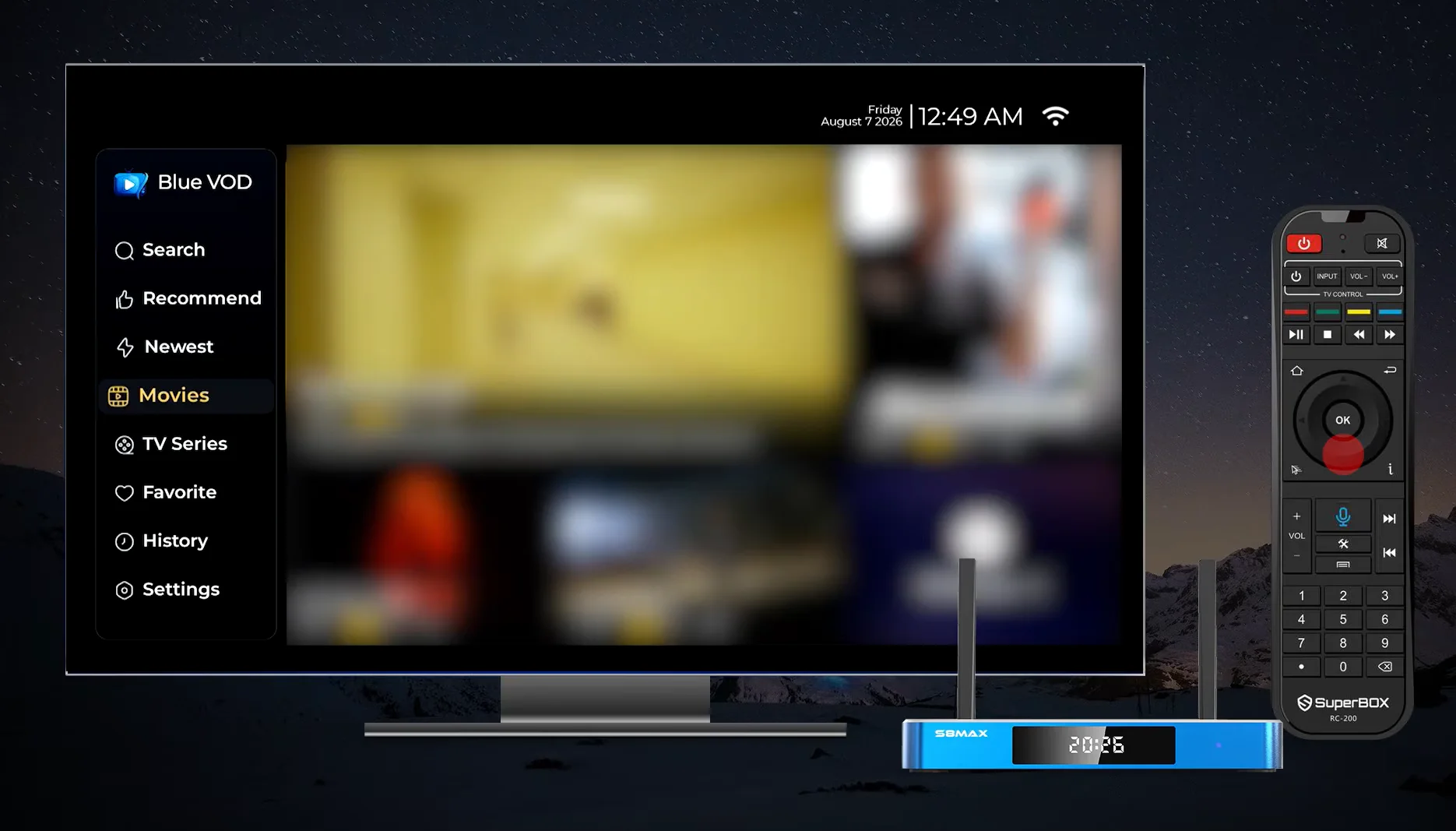
The interface of the new Blue VOD application on the SuperBox S8 has been completely restructured around intuitive vertical and horizontal navigation panels. The left-hand navigation sidebar organizes your entire on-demand library into dedicated operational modules, allowing immediate transitions between browsing modes.
The Search module launches the universal keyword and voice search engine with full alphanumeric onscreen keyboard support. The Recommend section curates personalized movie and television recommendations based on popular weekly releases and box-office trends across North America. The Newest category showcases the freshest media assets uploaded to cloud delivery networks, updated daily with current theatrical releases and recently broadcast episodes.
For deep category exploration, the Movies module opens the primary cinematic catalog with granular sub-filters for Action, Comedy, Drama, Horror, Sci-Fi, Romance, and Family titles. The TV Series section houses multi-season television shows organized by network, genre, and year of initial release.
The Favorite tab provides quick one-click access to your personalized watchlist of bookmarked titles, while History displays your recent viewing timeline with progress bars indicating exactly where you paused each program. Finally, the Settings module houses in-depth diagnostic utilities including video decoding modes, network speed testing, and version update checkers.
Advanced Voice Search and Multi-Criteria Filtering
Locating a specific movie among 15,000 titles can be time-consuming when typing letters manually on an onscreen keyboard. The new Blue VOD platform integrates deeply with the Bluetooth wireless technology in the SuperBox voice remote to make content discovery effortless.
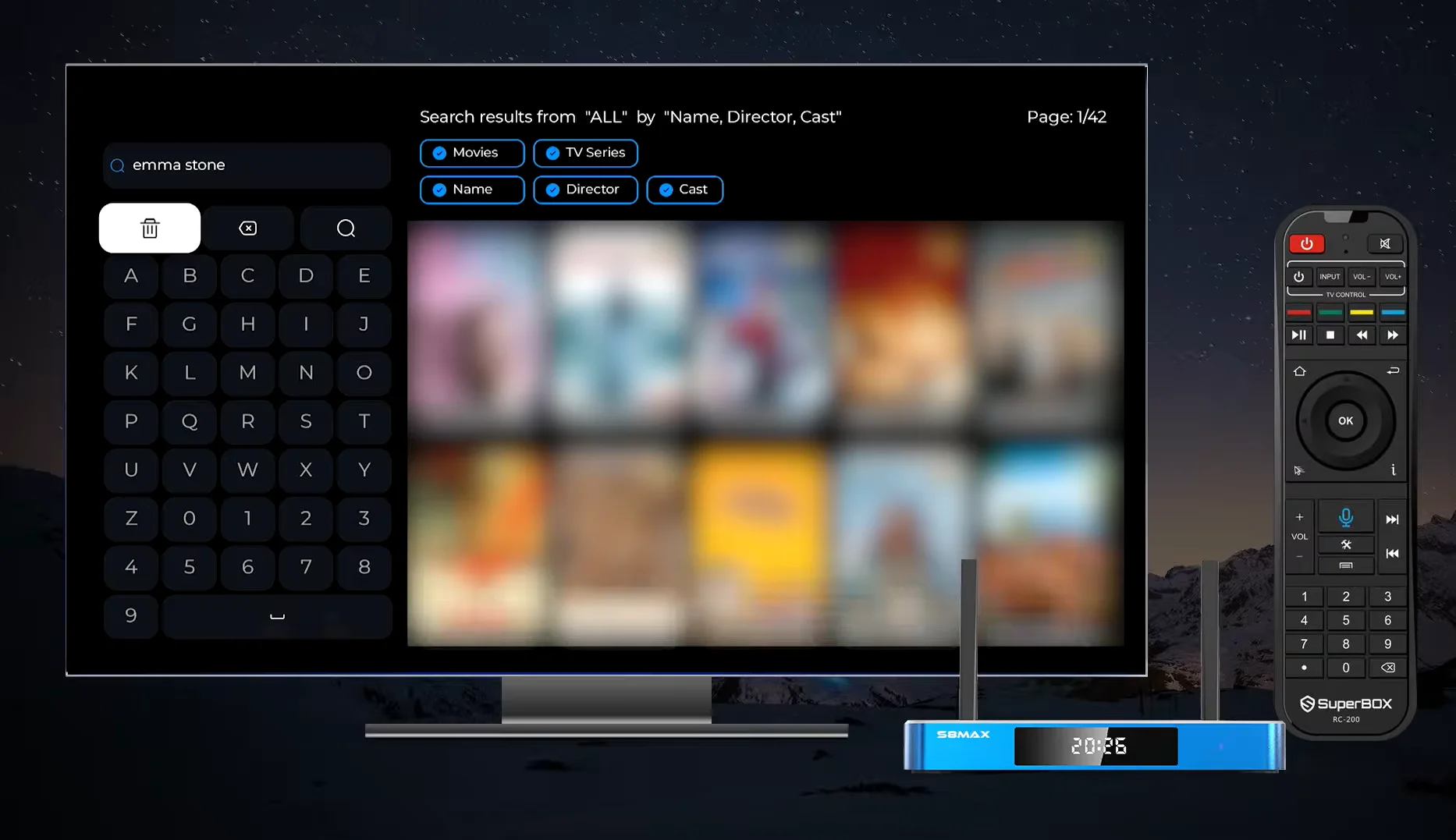
To execute a voice search, simply press and hold the dedicated Microphone button on your RC-200 remote control. Speak the title of a movie, an actor name such as Emma Stone or Tom Cruise, or a director. The application speech recognition module transcribes your audio query in milliseconds and populates the search results page.
Beyond basic keyword matching, the search interface introduces powerful filter toggles across the top banner. The Media Type Filter allows viewers to toggle between Movies, TV Series, or All to narrow broad queries immediately.
The Attribute Filter refines search terms specifically by Name, Director, or Cast, where selecting Cast displays every film and television appearance for the requested actor across the entire archive. In addition, the Pagination Tracker displays clear counter markers like Page 1 of 42, allowing you to browse extensive filmographies systematically without losing your position.
TV Series Management and Episode Tracking
Binge-watching multi-season episodic television requires a sophisticated player interface that keeps track of episodes, seasons, and plot summaries. The new Blue VOD updates series management with a comprehensive dedicated detail dashboard.
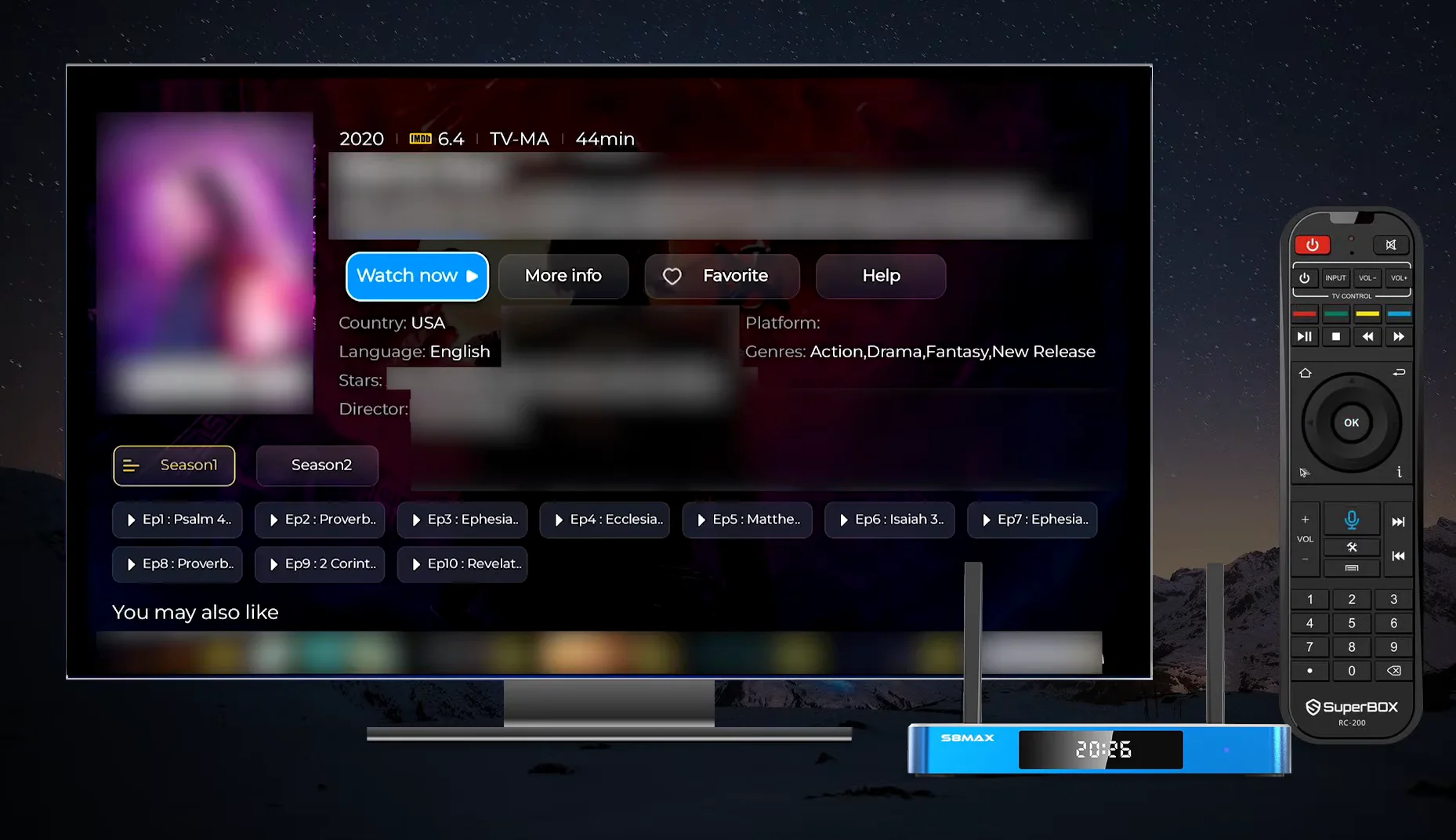
When you select a television show, Blue VOD displays a full metadata header detailing the release year, IMDb viewer rating, content rating such as TV-MA or TV-14, average episode runtime, origin country, audio language, production platform, starring cast, and director credits.
The episode selection row features horizontal tabs for Season 1, Season 2, and subsequent releases. Below the season selector, episodes are displayed in clear numerical blocks with episode numbers and titles. When an episode finishes playing, the player automatically cues up the next chronological episode, creating a seamless viewing experience. If you exit midway through an episode, Blue VOD marks the item with an active progress bar and places it at the front of your History queue.
Step-by-Step Playback Setup: In-Player Settings and Controls
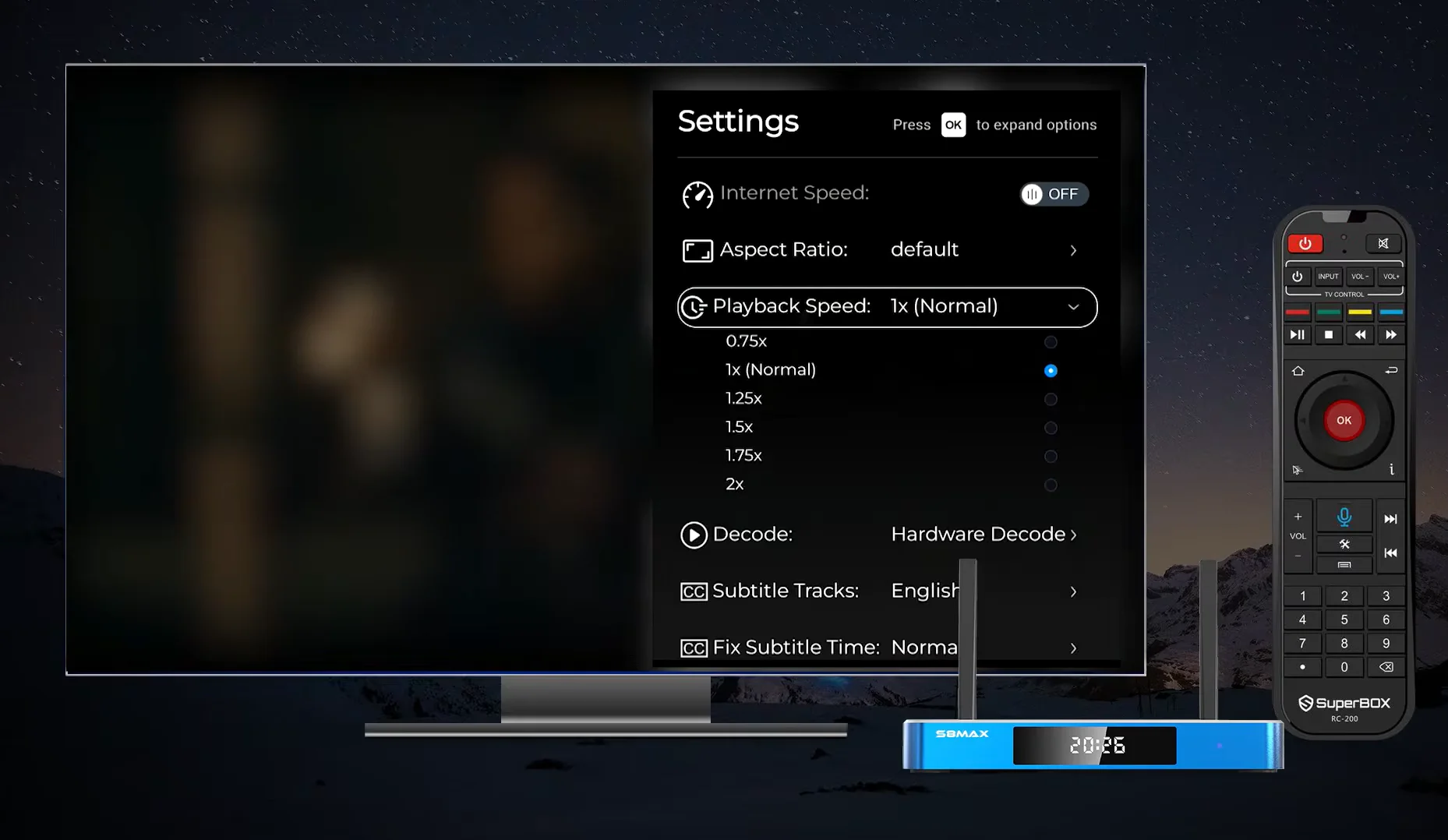
Step 1: Access the in-player settings drawer during playback
While any movie or television episode is playing on screen, press the OK button or the Menu button on your SuperBox remote control. This action brings up the transparent settings sidebar along the right edge of your television screen without interrupting active video playback.
From this panel, you can view real-time stream parameters including current network speed, video aspect ratio, playback rate, active decoding engine, and subtitle configurations.
Step 2: Configure variable playback speeds from 0.75x to 2x
Navigate down to the Playback Speed option and press OK to expand the available velocity options. For viewers studying foreign language dialogue or analyzing fast-paced instructional videos, selecting 0.75x slows playback slightly to maximize vocal clarity.
The default 1x setting preserves standard cinematic broadcast timing. If you wish to consume long narrative dramas, news analyses, or reality shows more efficiently, select 1.25x or 1.5x for accelerated playback without noticeable pitch distortion. For rapid skimming of recaps, choose 1.75x or 2x to double your viewing throughput.
Step 3: Activate hardware decoding for 4K and 6K streams
Scroll down to the Decode option on the settings drawer to inspect your active rendering pipeline. By default, ensure Hardware Decode is selected. Hardware decoding routes high-bitrate HEVC, H.265, and AV1 video streams directly to the dedicated Mali-G31 graphics coprocessor on the S8 motherboard.
This reduces CPU temperatures, prevents frame drops, and maintains fluid 60 frames per second motion. If you encounter an unusual legacy video format that causes audio delay, toggle this setting to Software Decode to allow the central processor to decompress the stream.
Step 4: Manage subtitle languages and calibrate timing sync
Open the Subtitle Tracks setting to choose your preferred closed-captioning track, such as English, Spanish, or None. If spoken dialogue and on-screen text are slightly mismatched due to regional broadcast conversions, select the Fix Subtitle Time calibration tool directly beneath the language list.
Pressing the Left or Right directional arrows shifts subtitle timestamps forward or backward in 250-millisecond increments, enabling exact phonetic alignment between spoken words and captions.
Step 5: Adjust display aspect ratios for ultra-wide and standard screens
Navigate to the Aspect Ratio menu option to tailor picture geometry to your television panel. Selecting Default adheres to the source broadcast aspect ratio, while 16:9 optimizes viewing for standard modern flat panels. For older classic television broadcasts recorded in 4:3 format, selecting Fill Screen or Stretch eliminates black side pillarboxes, expanding the picture to utilize the full dimensions of your display.
Step-by-Step System Optimization: Speed Testing and Diagnostics
Step 1: Execute the in-app broadband speed test
From the left-hand navigation sidebar, select the Settings tab and click Internet Speed Test. The application initiates a direct multi-threaded ping and throughput benchmark against the nearest SuperBox content delivery server.
When the test completes, the interface displays an active bandwidth classification, such as Internet Speed Fast. This verification confirms that your home connection meets the 25 to 50 Mbps throughput required for uncompressed 4K Ultra HD streaming.
Step 2: Establish system-wide default video decoding parameters
Below the network test utility, locate the Hardware Decode toggle. While the in-player menu allows per-video adjustments, configuring this master setting ensures that every newly launched title automatically starts in hardware-accelerated mode. Setting hardware decoding as your global default protects your console from unnecessary CPU workload and maintains cool operating temperatures during long streaming sessions.
Step 3: Inspect software build versions and install cloud updates
Navigate to the Version row within the settings panel to inspect your active application build number, such as Version 2026072719. Whenever content delivery engineers release security patches or catalog routing improvements, an Upgrade Now button illuminates beside the build code. Selecting Upgrade Now triggers an automated over-the-air firmware download, updating the application in seconds without requiring manual USB flashing.
Step 4: Review diagnostic logs and customer support information
If you encounter persistent network buffering or unexpected title crashes, scroll to the Customer Support Information card at the bottom of the settings menu. This screen displays your unique hardware MAC address, active gateway IP address, and current CDN routing node. Taking a quick photo of these diagnostic metrics allows our technical support team at superboxs8.com to troubleshoot localized network routing issues quickly.
Step-by-Step Setup: Installing and Updating Blue VOD
Step 1: Verify internet connectivity and system readiness
Power on your SuperBox S8 console and ensure your home television display is active. Before initiating application downloads, navigate to the main settings menu and verify that your Wi-Fi or wired Gigabit Ethernet connection is active and stable. An active broadband connection with a minimum throughput of 25 Mbps is required to download application assets and synchronize initial cloud metadata.
Step 2: Open the factory SuperBox App Store
From the horizontal application ribbon on your main home launcher screen, locate and open the official App Store application. The App Store serves as the authenticated repository for all proprietary SuperBox media engines, guaranteeing that downloaded installation packages are genuine, malware-free, and digitally signed for your hardware revision.
Step 3: Locate and download the Blue VOD application package
Within the App Store catalog, browse the primary featured applications or use the top search utility to locate the Blue VOD icon, recognized by its signature blue play-arrow emblem. Highlight the icon and press the OK button on your remote control to open the application summary screen, then select Download or Install to initiate the download package retrieval.
Step 4: Complete system installation and grant storage permissions
The operating system will automatically extract the installation archive and configure the application binaries. When prompted on screen, select Allow to grant Blue VOD permission to access local device storage. This permission is critical for allowing the player to cache video stream buffers, store downloadable media files, and preserve your local viewing history across power cycles.
Step 5: Pin Blue VOD to your home screen launcher
Once installation completes, press the Home button on your remote to return to the primary launcher interface. Scroll to the quick-launch application row and select the Add tile marked with a plus icon. Check the box next to Blue VOD to place the application prominently on your front dashboard, allowing one-click access whenever you power on the entertainment console.
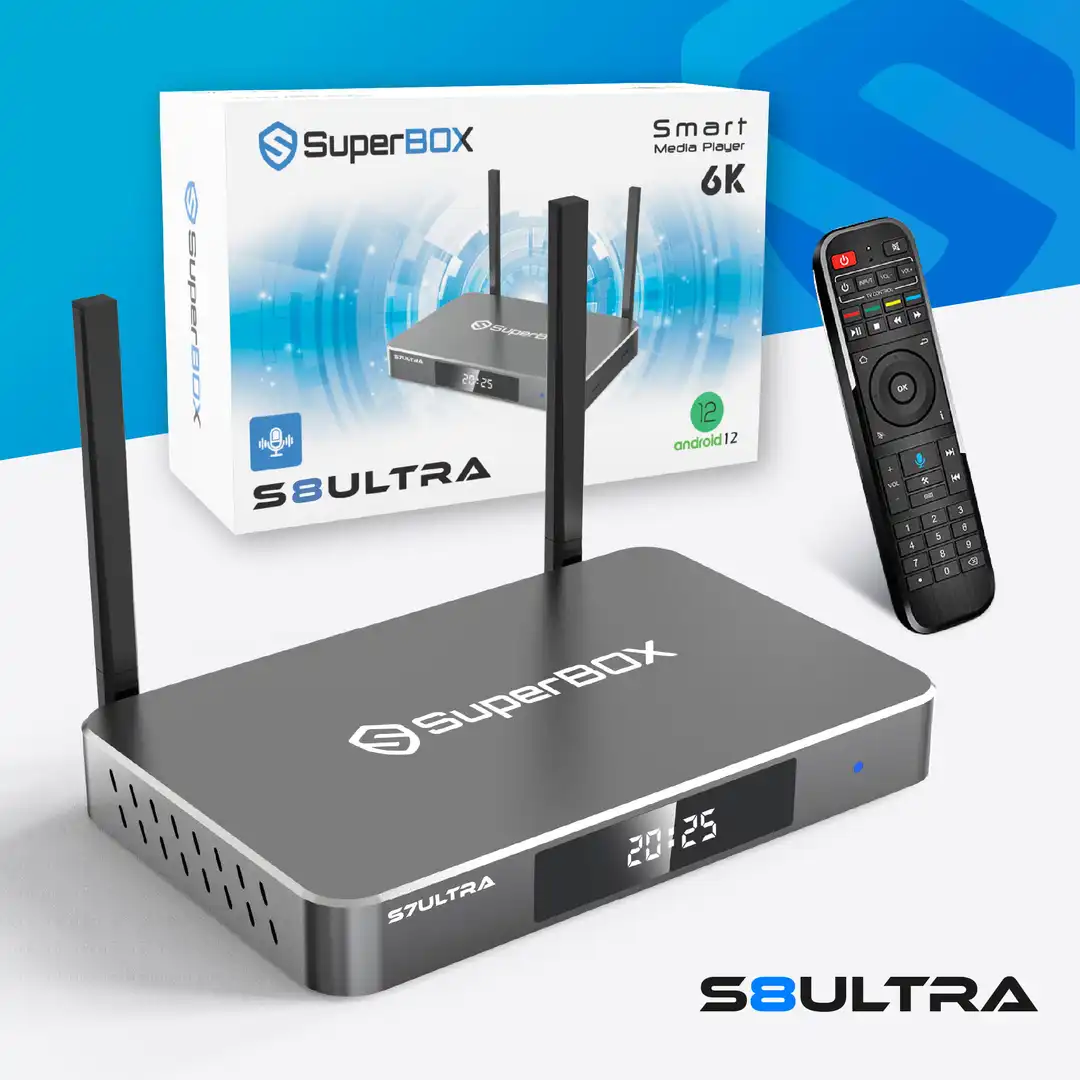 Cinema Flagship
Experience the ultimate on-demand movie theater with the SuperBox S8 Ultra. Engineered with 128GB of high-speed eMMC storage, 4GB RAM, Gigabit Ethernet, and the exclusive RC-200 Backlit Voice Remote, the S8 Ultra streams over 15,000+ movies and 3,700+ TV series on Blue VOD with zero monthly subscription fees.
Why Buy From superboxs8.com?
We are an authorized direct distributor committed to providing authentic hardware and lifelong customer support.
Frequently Asked Questions
What is Blue VOD on the SuperBox S8?
Blue VOD is the native video-on-demand streaming application on the SuperBox S8 series that provides lifetime access to over 15,000 movies and complete multi-season television series without monthly fees.
Does Blue VOD require a monthly subscription fee?
No, access to Blue VOD is included with the initial one-time purchase of your authentic SuperBox S8 device. There are zero ongoing monthly fees, rental costs, or subscription tiers.
How do I change playback speed on Blue VOD?
During active video playback, press the OK or Menu button on your remote to bring up the player settings drawer on the right side of the screen. Select Playback Speed to choose between 0.75x, 1x Normal, 1.25x, 1.5x, 1.75x, or 2x.
Can I enable multi-language subtitles on Blue VOD?
Yes, open the player settings drawer during video playback, navigate to Subtitle Tracks, and select your preferred language track, such as English or Spanish. You can also calibrate subtitle synchronization using the Fix Subtitle Time tool.
What should I do if a movie buffers or fails to load on Blue VOD?
First, check your home internet speed under the Blue VOD Settings menu to ensure you have at least 25 to 50 Mbps. Next, verify that Decode is set to Hardware Decode. If a title still stutters, restart your router and verify your box is connected via 5GHz Wi-Fi or wired Ethernet.
How often is the movie and series catalog updated on Blue VOD?
The cloud catalog on Blue VOD is updated daily by content delivery engineers, adding newly released theatrical films, current episodic television broadcasts, and 4K remasters automatically.
How do I search for movies by actor or director on Blue VOD?
Navigate to the Search tab on the left sidebar, press and hold the Microphone button on your voice remote, and state the actor name. You can also toggle the Cast or Director filter at the top of the search screen to display their full filmography.
Can I add movies to a Favorites watchlist on Blue VOD?
Yes, on any movie or television series detail page, select the heart-shaped Favorite button. The title will immediately appear in your dedicated Favorite category on the main navigation sidebar.
How does hardware decoding improve streaming performance in Blue VOD?
Hardware decoding utilizes the dedicated Mali-G31 graphics coprocessor on the S8 hardware to decompress 4K and 6K video streams. This reduces processor heat, prevents dropped frames, and ensures fluid playback during long movie marathons.
Where do I update Blue VOD to the latest version?
Open Blue VOD, navigate to the Settings tab on the left sidebar, and select Upgrade Now next to the Version number. You can also update or reinstall the app anytime through the official SuperBox App Store.
Conclusion: Final Verdict on the New Blue VOD Experience
The new Blue VOD platform on the SuperBox S8 generation establishes a benchmark for subscription-free home cinema streaming. By pairing an expansive on-demand library of over 15,000 movies and 3,700 television series with advanced player features like variable playback speeds, subtitle calibration, and hardware decoding, engineers have addressed the limitations of older streaming platforms.
Whether you stream movies on the accessible S8 Pro or take full advantage of the 128GB storage and backlit voice remote on the flagship S8 Ultra, the refined Blue VOD interface ensures seamless navigation and rapid content delivery. For households looking to replace recurring streaming subscription fees with a permanent home entertainment solution, the new Blue VOD on the SuperBox S8 delivers an unmatched on-demand viewing experience.
The article was updated on:
