
Knowledge SuperBox
How to Connect SuperBox S7 to Wi-Fi 6 Router for Fast Speed?





Connecting your SuperBox S7 to a modern Wi-Fi 6 router unlocks blistering wireless speeds, lower latency, and seamless 4K Ultra HD streaming without annoying buffer pauses. All models in the SuperBox S7 generation (including the S7 Pro, S7 Max, and S7 Ultra) come engineered with dual-band Wi-Fi 6 (802.11ax) network hardware and dual external high-gain antennas. At superboxs8.com, our technical support specialists created this step-by-step practical guide to walk you through configuring your wireless network, optimizing router settings, and maximizing streaming stability.
Quick Wi-Fi 6 Connection Summary
Network Standard: The SuperBox S7 series features dual-band Wi-Fi 6 (802.11ax, 2T2R) with dual external antennas supporting both 2.4GHz and 5.8GHz frequency channels.
Recommended Wireless Band: Always select your router’s 5GHz (or 5.8GHz) network SSID for maximum throughput and minimum local signal interference during 4K sports streaming.
Quick Connection Steps: Go to Settings > Network & Internet > Turn On Wi-Fi > Select your 5GHz Wi-Fi 6 network > Enter password > Click Connect.
Why Wi-Fi 6 Makes a Dramatic Difference for Streaming
Traditional wireless standards like Wi-Fi 4 (802.11n) and Wi-Fi 5 (802.11ac) were designed when households had only a few connected devices. Today, modern homes often operate dozens of smartphones, laptops, smart TVs, security cameras, and gaming consoles simultaneously. On older wireless networks, this crowded environment creates severe radio congestion, packet queuing delays, and unpredictable stream buffering during live sports broadcasts.
Wi-Fi 6 (802.11ax) introduces revolutionary wireless networking technologies, notably Orthogonal Frequency-Division Multiple Access (OFDMA) and multi-user MIMO (MU-MIMO). Instead of forcing your SuperBox S7 to wait in line behind other smart devices for router transmission cycles, Wi-Fi 6 divides wireless channels into smaller sub-carriers, delivering compressed video packets to multiple devices at the exact same instant. For SuperBox S7 owners, this translates into instantaneous channel switching, zero dropped frames, and reliable live television streaming.
| Network Feature | Older Wi-Fi 5 (802.11ac) | SuperBox S7 Wi-Fi 6 (802.11ax) |
|---|---|---|
| Wireless Technology Standard | Legacy 802.11ac (Single-user focus) | Modern 802.11ax (2T2R High-Density Efficiency) |
| Frequency Bands Supported | Dual-band 2.4GHz & 5GHz | Dual-band 2.4GHz & High-Throughput 5.8GHz |
| Antenna Configuration | Typically internal micro antennas | Dual External High-Gain Adjustable Antennas |
| Network Latency & Jitter | Higher latency under heavy household traffic | Ultra-low latency with OFDMA packet scheduling |
| Performance with Multiple Devices | Prone to buffering when other devices stream | Maintains steady throughput across congested home networks |
| Security & Encryption Standard | WPA2-Personal | WPA2 / Modern WPA3-Personal Protocol Support |
Step-by-Step Guide to Connecting SuperBox S7 to Wi-Fi 6
Step 1: Position and Adjust External Antennas
Before navigating on-screen menus, physically inspect the two external antennas on the rear of your SuperBox S7. Rotate both antennas upward into a vertical 90-degree position. Vertical antenna alignment matches the radio signal polarization of most modern home Wi-Fi 6 routers, ensuring optimal reception and signal capture.
Step 2: Open Network Settings on Your Home Screen
Turn on your television and SuperBox S7.
Using your remote control, navigate to the top-right corner of the home dashboard and click the Settings gear icon.
In the main settings menu, select Network & Internet and press OK on your remote control.
Verify that the master Wi-Fi toggle switch is set to the ON position.
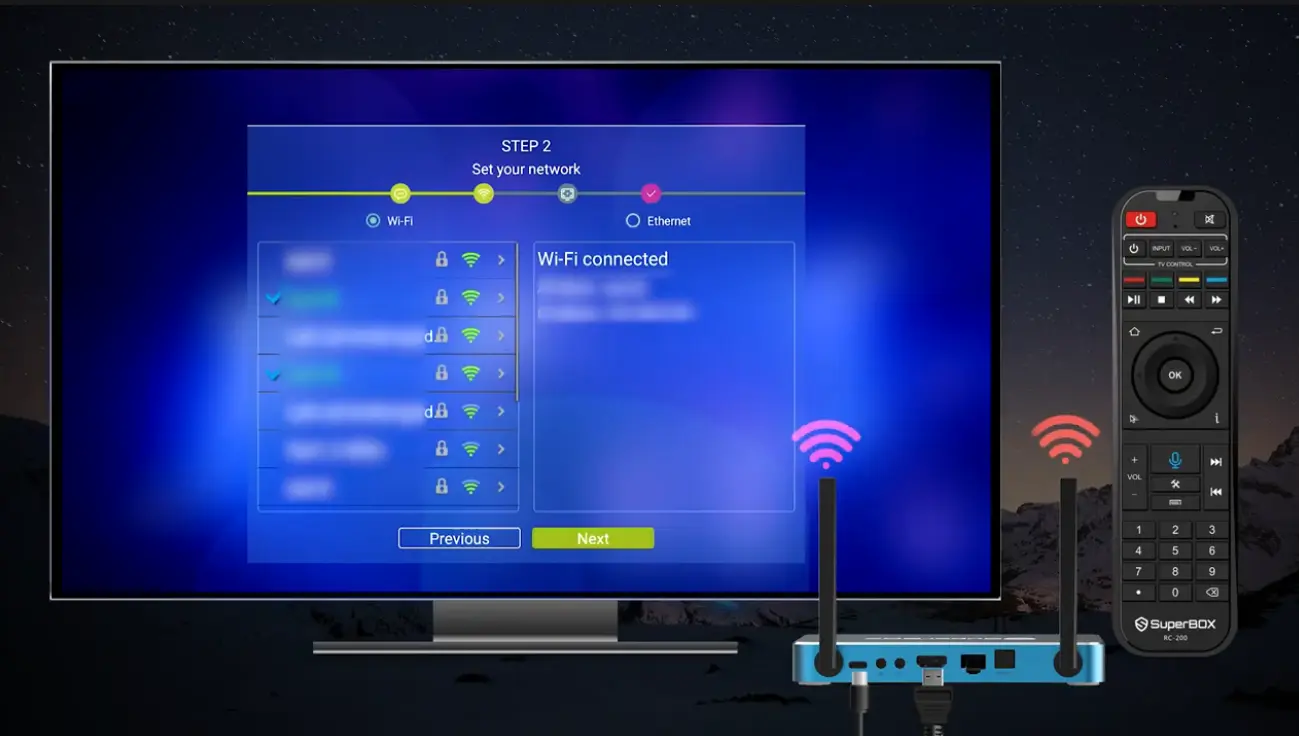
Step 3: Scan and Identify Your 5GHz Wi-Fi 6 Network
Your SuperBox S7 will automatically scan and display all available wireless networks within range.
If your Wi-Fi 6 router broadcasts separate network names (SSIDs) for 2.4GHz and 5GHz (such as “HomeNetwork_5G” and “HomeNetwork_2.4G”), always highlight the 5GHz network name. The 5GHz frequency band offers wider wireless channels and drastically less interference from microwave ovens and neighboring electronics.
If your router uses Smart Connect (a single unified network name for both bands), select your main network name; the SuperBox S7 Wi-Fi 6 chip will negotiate the fastest available 5GHz connection automatically.
Step 4: Enter Your Network Password Accurately
Highlight your selected network and press OK to bring up the on-screen virtual keyboard.
Carefully enter your wireless security password using the remote directional arrows. Note that Wi-Fi passwords are case-sensitive. You can check the “Show password” box to verify that letters, numbers, and special symbols are entered correctly.
Once entered, highlight the Enter arrow or press the Return key to initiate connection authentication.
Step 5: Verify IP Address and Connection Status
After a few seconds, the network name will display “Connected successfully” with an active Wi-Fi signal icon.
Click on the connected network name to review connection details:
Signal strength: Should display “Excellent” or “Good”.
Link speed: Will display high negotiated throughput.
IP assignment: Confirms that your router successfully assigned an IPv4 local address.

Optimizing Router Placement and Wi-Fi 6 Settings
Ideal Router and Box Placement
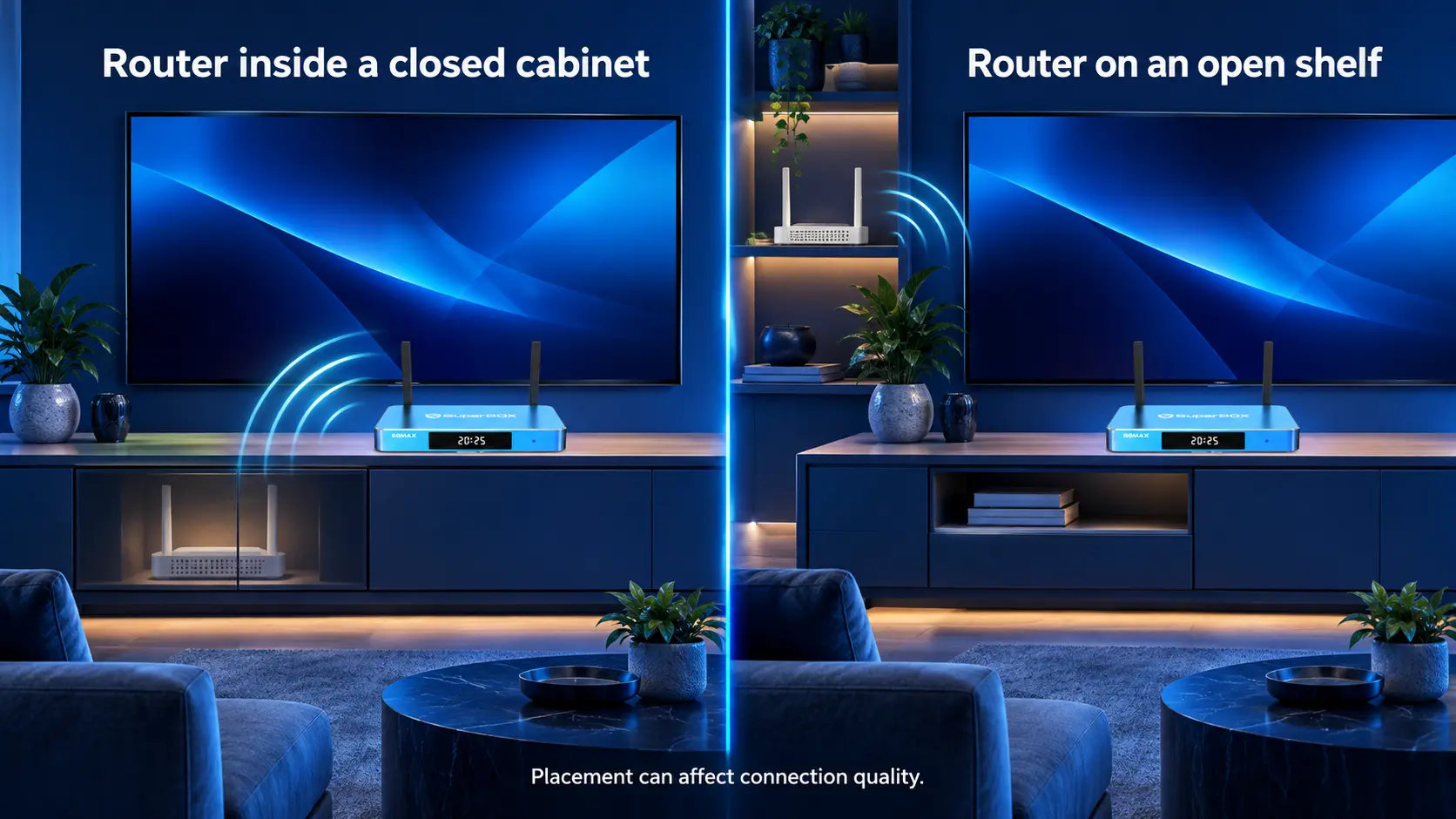
Avoid placing your SuperBox S7 or Wi-Fi router on the floor, inside metal media consoles, or directly behind large metallic subwoofers. Position your router at table height or on an elevated shelf in a central living room area. Keeping a clear line of sight or minimal drywall barriers between your router and the SuperBox S7 preserves high-frequency 5GHz signal strength.
Choose an Uncongested 5GHz Wi-Fi Channel
Log into your Wi-Fi 6 router administration dashboard using a web browser on your phone or computer. Under wireless settings, adjust your 5GHz channel bandwidth to 80MHz or 160MHz for maximum throughput. If you live in a dense apartment building or condominium, set the 5GHz channel to a less congested DFS channel or static channel (such as 36, 44, or 149) rather than relying on automatic hopping.
Keep Router Firmware Updated
Router manufacturers frequently release security and wireless performance updates that improve device compatibility and power management. Checking for firmware updates in your router management app ensures optimal communication with your SuperBox S7.
Troubleshooting Wi-Fi 6 Connection Issues
SuperBox S7 Does Not See the 5GHz Network
If your 5GHz network does not appear in the available list, your router may be broadcasting on an unsupported high-range channel. Log into your router settings and adjust the 5GHz control channel to a standard non-DFS band (such as Channels 36 to 48). Additionally, toggle the SuperBox S7 Wi-Fi switch OFF, wait 5 seconds, and toggle it back ON to refresh the network scan.
“Authentication Problem” or “Saved” but Not Connecting
This error usually indicates a mistyped password or an outdated security protocol setting. Highlight the network name, press OK, select “Forget network”, and reconnect by carefully re-entering your Wi-Fi password. Verify that your router security mode is set to WPA2/WPA3 Mixed mode for universal device compatibility.
Wi-Fi Connected but Apps Show Network Error
If the box shows connected to Wi-Fi but Blue TV or Blue VOD fails to load, check whether other devices in your home have active internet access. A quick power cycle often clears router routing locks: unplug both your router and your SuperBox S7, wait 30 seconds, plug the router back in first, and once router lights turn solid green, plug in your SuperBox S7.
Official Product Guarantee: Experience authentic SuperBox S7 models with verified Wi-Fi 6 hardware and comprehensive warranty protection directly at https://superboxs8.com/superbox-s7/s7-pro/.
Frequently Asked Questions
Does the SuperBox S7 support Wi-Fi 6?
Yes, all models in the SuperBox S7 lineup (S7 Pro, S7 Max, and S7 Ultra) come equipped with dual-band Wi-Fi 6 (802.11ax) network hardware.
What is the difference between 2.4GHz and 5GHz Wi-Fi on SuperBox S7?
The 5GHz band provides much faster data speeds and less interference for 4K video, while the 2.4GHz band offers slightly wider physical range through multiple walls.
Can I connect the SuperBox S7 to an older Wi-Fi 5 or Wi-Fi 4 router?
Yes, the Wi-Fi 6 chip inside the SuperBox S7 is completely backward-compatible with all standard Wi-Fi 5 and Wi-Fi 4 wireless routers.
Does the SuperBox S7 support Wi-Fi 7?
No, the SuperBox S7 series supports dual-band Wi-Fi 6 (802.11ax); it does not feature Wi-Fi 7 hardware.
How should I position the external antennas on the SuperBox S7?
Position both external antennas vertically at a 90-degree angle to align with the vertical signal polarization of most modern wireless routers.
Is an Ethernet cable better than Wi-Fi 6 for the SuperBox S7?
A direct Ethernet cable connected to the built-in 1000Mbps Gigabit port provides the highest possible stability, but Wi-Fi 6 delivers exceptional wireless performance when cables cannot be run.
Why is my SuperBox S7 buffering on Wi-Fi?
Buffering is typically caused by connecting to a crowded 2.4GHz band, physical signal obstruction, or temporary ISP speed drops. Switching to 5GHz usually resolves it.
How do I forget a Wi-Fi network on the SuperBox S7?
Go to Settings > Network & Internet, select your connected network, click “Forget network”, and confirm with OK.
What internet speed do I need for smooth SuperBox S7 streaming?
We recommend a minimum download speed of 25 Mbps for high-definition streaming and at least 50 Mbps for buffer-free 4K Ultra HD playback.
Can I connect the SuperBox S7 to a mobile phone hotspot?
Yes, you can connect your SuperBox S7 to a smartphone Wi-Fi hotspot when traveling or camping, provided your mobile plan has sufficient high-speed hotspot data.
Conclusion
Connecting your SuperBox S7 to a Wi-Fi 6 router provides the ideal foundation for flawless, high-definition television viewing. By taking advantage of dual-band Wi-Fi 6 technology, adjusting the dual external high-gain antennas, and selecting the fast 5GHz wireless frequency band, you ensure that every live sporting event, news broadcast, and 4K movie plays with instant responsiveness and crystal-clear reliability.
The article was updated on:
