
Knowledge SuperBox
How to Fix SuperBox Buffering Issues & Freezing [2026 Step-by-Step Guide]





Experiencing Super Box buffering issues and device freezing typically occurs due to local Wi-Fi interference, accumulated app cache, temporary router session errors, or incorrect video streaming settings. By systematically following a few straightforward troubleshooting steps—such as power cycling your network equipment, connecting via Gigabit Ethernet, adjusting app speed modes, and clearing cached data—you can restore smooth, buffer-free 6K streaming in minutes.
Key Takeaways of this Guide:
- Buffering and freezing on SuperBox are usually caused by wireless network instability, full cache, or router session buildup.
- Performing a full 2-minute power cycle of both your modem/router and SuperBox resolves most temporary streaming lag.
- Switching from Wi-Fi to a 1000Mbps Gigabit Ethernet wired connection instantly eliminates wireless signal drops.
- Adjusting the VOD app Internet Speed setting from ‘Fastest’ to ‘Faster’ provides significantly steadier video playback.
- Authentic SuperBox hardware with Titanium Gray Aluminum cooling ensures optimal thermal management and 24/7 US support.
How to diagnose what is causing your SuperBox to buffer
Before adjusting advanced settings, diagnosing the specific pattern of your buffering issue helps identify whether the problem lies within your home internet, the local Wi-Fi link, app cache, or stream servers. Answering four simple questions immediately pinpoints the most effective fix.
| Buffering Symptom Pattern | Likely Root Cause | Recommended Immediate Fix |
|---|---|---|
| Every app and channel buffers | Home network, router session overload, or ISP routing | Power cycle network & switch to Gigabit Ethernet |
| Only Blue TV or Blue VOD buffers | App cache accumulation or streaming speed setting | Switch Speed to “Faster” & Clear App Cache |
| Only one specific live channel buffers | Temporary CDN broadcast stream congestion | Select alternative backup stream or wait for feed update |
| Buffering occurs mainly during evenings | Household bandwidth competition or local ISP peak traffic | Pause background downloads & test 5GHz Wi-Fi band |
| Wi-Fi buffers but Ethernet plays smoothly | Wireless interference or weak Wi-Fi signal through walls | Use 1000Mbps Gigabit LAN cable or relocate router |
Step 1: Power cycle your router, modem, and SuperBox
A full system restart is the fastest way to eliminate temporary network packet errors, clear router memory leaks, and refresh your SuperBox operating system. Unplugging both devices clears background processes that did not shut down cleanly.
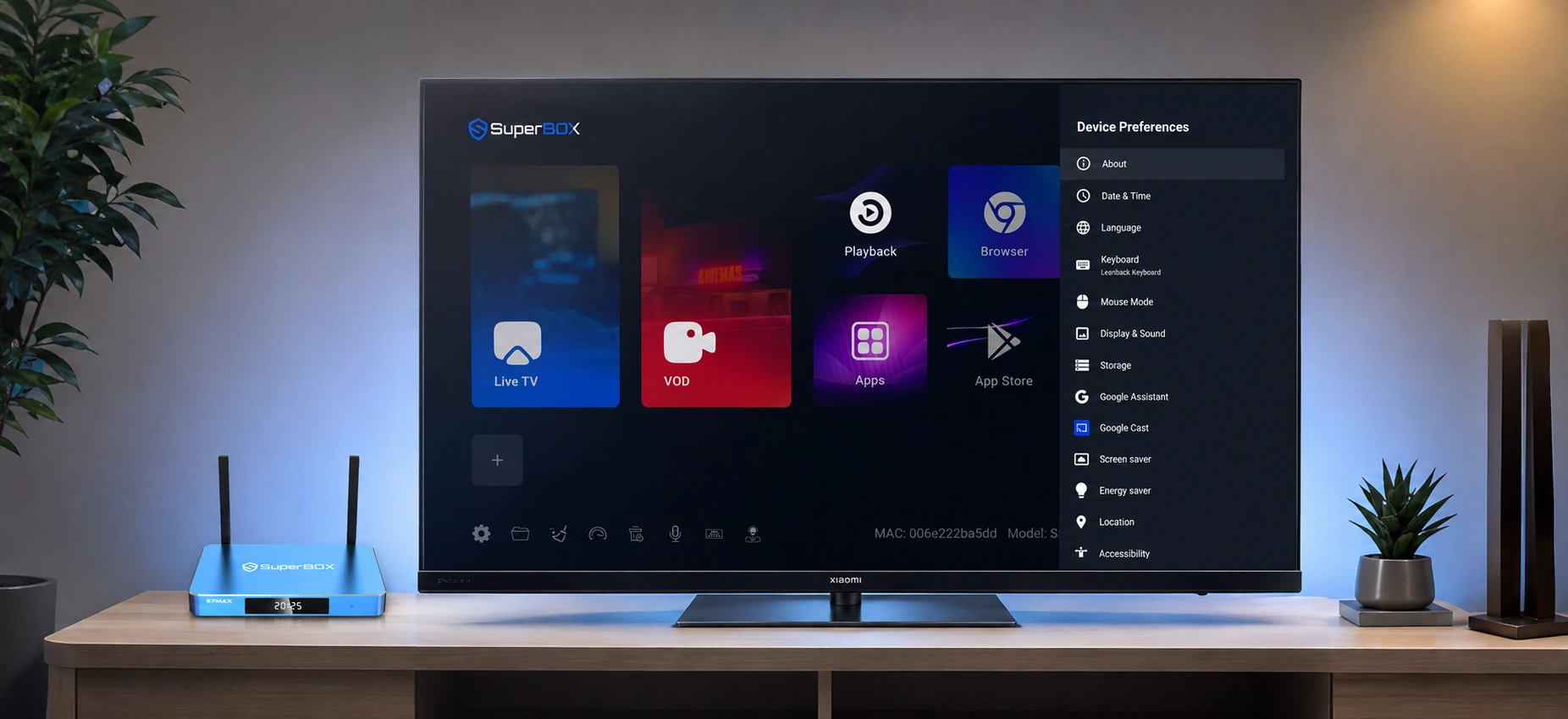
Follow this exact power cycle sequence for best results:
Step 2: Switch from Wi-Fi to a wired Gigabit Ethernet connection
Connecting your SuperBox directly to your router using an Ethernet cable provides maximum streaming reliability. To understand how the hardware processes incoming IPTV data packets, learning how does SuperBox work reveals why a wired connection delivers uninterrupted data transmission.
All flagship models—including the SuperBox S8 Series and SuperBox S7 Series—feature a high-speed 1000Mbps Gigabit Ethernet port. Connecting a Cat5e or Cat6 Ethernet cable eliminates wireless drops and ensures zero-buffer playback during live sports and pay-per-view events.
 2026 AI Voice Edition
SuperBox S8 Max 6K Android TV Box
Experience buffer-free 6K entertainment with 4GB RAM, 64GB Storage, Titanium Gray Aluminum alloy cooling, Wi-Fi 6, and 1000Mbps Gigabit Ethernet. Stream over 1,200+ Live Channels and 15,000+ Movies with zero monthly fees.
Step 3: Optimize Wi-Fi placement and select the 5GHz frequency band
If running an Ethernet cable is not practical for your room setup, following the wireless recommendations in our SuperBox S7 setup guide ensures a strong, low-latency transmission signal.
Apply these wireless best practices:
- Connect to 5GHz Wi-Fi: If your router is in the same room, connect to the 5GHz frequency band for faster throughput and reduced radio interference.
- Use 2.4GHz for Long Distances: If your SuperBox is separated from the router by multiple thick walls, connect to the 2.4GHz band for better obstacle penetration.
- Elevate Your Router: Position your router in an open, elevated area away from large metal objects, thick concrete walls, and microwave appliances.
- Reduce Network Competition: Pause large file downloads, video game updates, and cloud backups while streaming live 4K/6K content.
Step 4: Adjust VOD Internet Speed and streaming settings
Inside the Blue VOD application, the built-in Internet Speed setting regulates how aggressively the media engine pre-buffers incoming video streams. For users asking can you record on a SuperBox, adjusting buffer speeds ensures both live recordings and 7-Day Time Shift streams play without frame drops. While the option labeled “Fastest” might seem logical, it can cause streaming buffers to overrun on variable home connections.
Follow these steps to optimize VOD streaming mode:
- Open the Blue VOD application from your home screen.
- Navigate to Settings from the bottom or side navigation bar.
- Select Internet Speed.
- Select the middle option labeled Faster.
- Exit the application completely, reopen it, and test your movie or series playback.
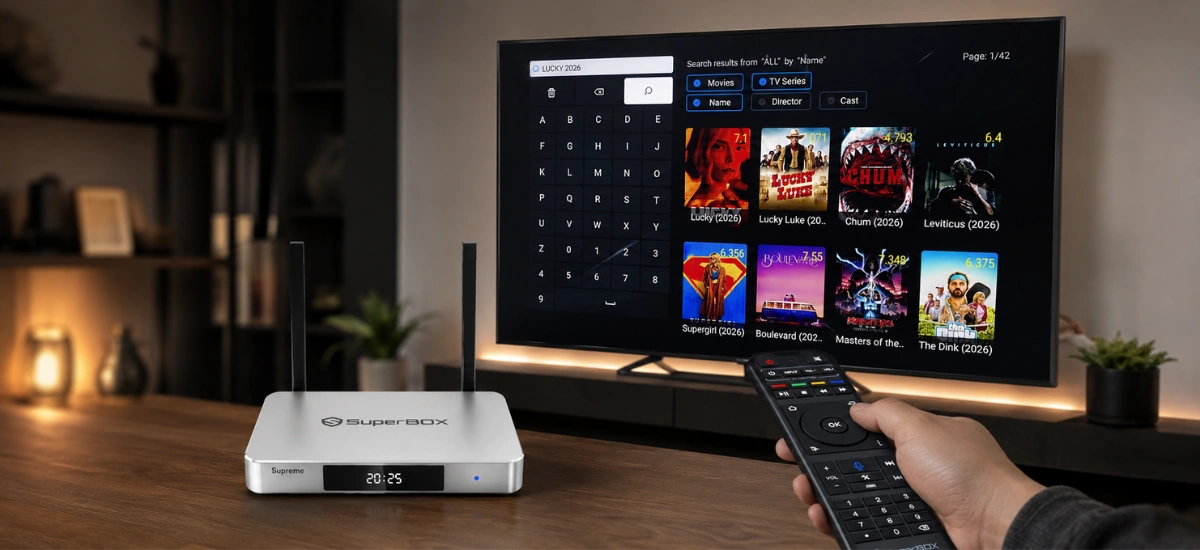
Setting your streaming mode to ‘Faster’ allows the video buffer to build steadily without overwhelming home broadband connections during peak viewing hours.
Step 5: Clear app cache and remove temporary junk data
Over time, streaming applications accumulate temporary cache files to speed up navigation. However, accumulated or corrupted cache files can lead to app stuttering, channel freezing, and playback errors.
To safely clear application cache without deleting your settings:
- Go to Settings > Apps on your SuperBox home screen.
- Select the streaming app experiencing buffering (e.g., Blue TV or Blue VOD).
- Click Clear Cache (do not select Clear Data, which resets app configuration).
- Return to the home screen, relaunch the app, and enjoy clean playback.
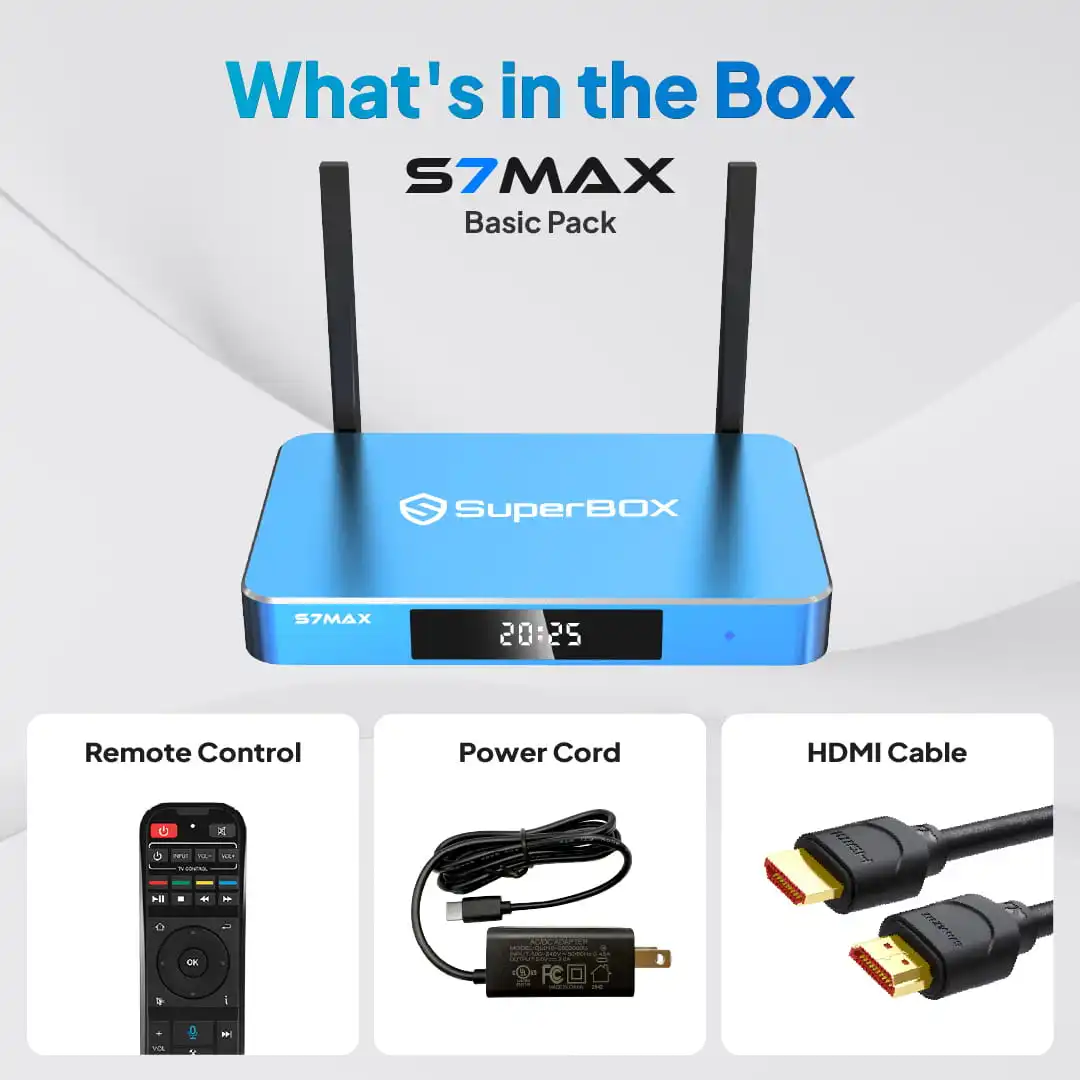 Best-Seller Value
SuperBox S7 Max 6K Android TV Box
Proven cord-cutting reliability powered by 4GB RAM, 64GB Storage, 7-Day Time Shift playback, Gigabit Ethernet, and Bluetooth 5.2. Enjoy uninterrupted live sports and movies without subscription bills.
Step 6: Maintain thermal cooling and avoid device overheating
Excessive internal heat buildup can cause media processors to throttle performance, resulting in dropped frames and system freezes. Authentic SuperBox models feature an engineered Titanium Gray aluminum alloy or metal chassis designed for continuous passive cooling.
Upgrading to hardware with advanced passive heatsinks, such as the Titanium Gray aluminum chassis featured in the best SuperBox model to buy, eliminates processor throttling during intensive multi-hour 6K broadcasts.
To maintain cool operating temperatures below 55 degrees Celsius:
- Place your SuperBox on a hard, flat surface with open airflow on all sides.
- Never place the device inside closed cabinets or on top of hot AV receivers and gaming consoles.
- Keep the cooling vents free from dust buildup.
Why buying authentic SuperBox hardware matters
Purchasing genuine hardware through an authorized distributor ensures factory firmware stability, optimal cooling engineering, and direct warranty coverage. Counterfeit and grey-market boxes often contain low-grade components that overheat quickly and suffer from persistent buffering.
At superboxs8.com, we operate under official manufacturer authorization code SP20250414002. Customers can apply a verified SuperBox discount code at checkout, with every order including a 30-day money-back guarantee, a full 1-year hardware replacement warranty, and free express 2-to-5-day delivery from domestic California and New Jersey fulfillment centers.
Because genuine devices ship as clean, unconfigured Android mini PCs, verifying that is SuperBox legal ensures your streaming setup complies with consumer communications standards.
Why Buy From superboxs8.com?
Authorized Official SuperBox Online Distributor (Authorization Code: SP20250414002)
Frequently asked questions about SuperBox buffering issues
Here are direct answers to common questions about resolving buffering and freezing on SuperBox devices.
Why does my SuperBox keep freezing during live sports?
Live sports streaming requires consistent bandwidth and low latency. Freezing is usually caused by Wi-Fi packet drops or router congestion. Connecting via a wired Gigabit Ethernet cable and restarting your router resolves the issue in most cases.
Should I factory reset my SuperBox to fix buffering?
No, a factory reset is unnecessary for standard buffering and should only be used as a last resort. Simple fixes like power cycling your equipment, switching to Ethernet, and clearing the app cache resolve over 95% of buffering issues.
What internet speed is recommended to stop SuperBox from buffering?
A minimum broadband download speed of 25Mbps is recommended for smooth 1080p Full HD playback, while 50Mbps or higher ensures buffer-free 4K and 6K Ultra HD streaming.
The article was updated on:
