
Knowledge SuperBox S8
How to Set Up SuperBox S8 Complete Guide [2026]





Setting up your new SuperBox S8 takes less than ten minutes and requires no technical expertise. Whether you purchased the SuperBox S8 Pro ($359.00 USD), S8 Max ($399.00 USD), or S8 Ultra ($449.00 USD), every model features an intuitive first-time configuration process designed to get you watching live television and on-demand movies immediately.
In this complete step-by-step setup guide, our team at superboxs8.com walks you through every stage from unboxing your hardware accessories and connecting your HDMI cable to pairing the Bluetooth voice remote, configuring high-speed Wi-Fi 6, and downloading official Blue TV and Blue VOD apps from the App Store. Follow the clear instructions below to unlock the full potential of your device.
Quick Check: Setting up your SuperBox S8 involves 4 primary phases: 1) Connect HDMI and USB Type-C power; 2) Pair Bluetooth voice remote by holding [OK] + [Back/Return] until the light flashes blue; 3) Connect to home Wi-Fi 6 or Gigabit Ethernet; 4) Open the pre-installed App Store on the home screen to download Blue TV (live channels) and Blue VOD (movies). No registration or monthly fees required.
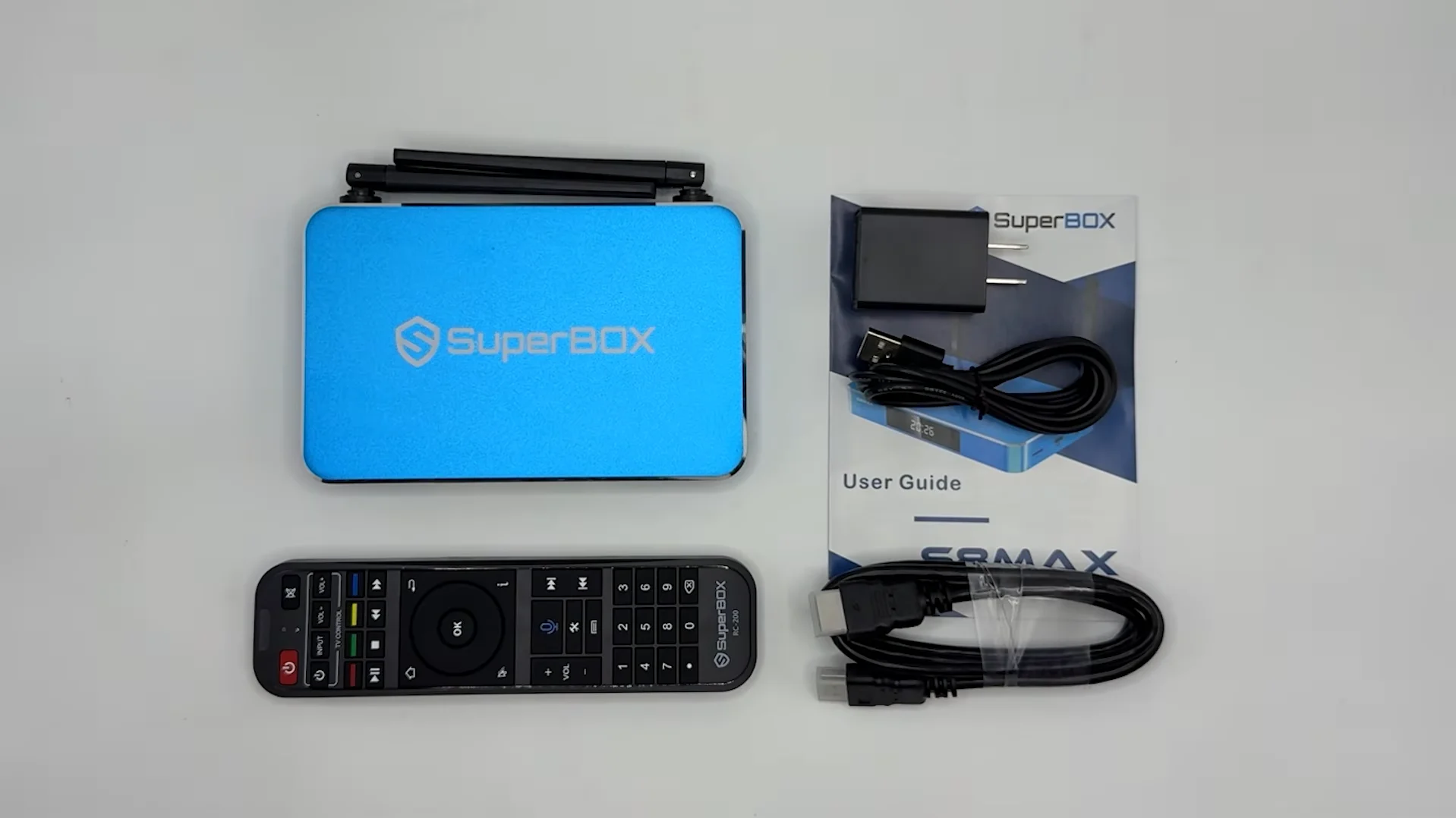
What Comes in the SuperBox S8 Retail Box
Before beginning the physical connection process, open your retail packaging and verify that all standard accessories are included. Inside the box, you will find the SuperBox S8 media console, a high-speed HDMI 2.1 cable supporting 4K and 6K video output, an official Bluetooth voice remote control, two external high-gain Wi-Fi antennas, a certified USB Type-C 5V/2A power supply adapter, and a quick-start reference manual.
Take a moment to screw the two external Wi-Fi antennas onto the threaded brass connectors located on the rear panel of the media player. Position the antennas upright in a vertical orientation to ensure optimal wireless reception from your home router.
Step-by-Step Initial Hardware Connection Guide
Step 1: Connecting the HDMI Cable to Your Television
Locate the HDMI output port on the rear panel of your SuperBox S8. Insert one end of the included high-speed HDMI cable firmly into this port. Take the opposite end of the HDMI cable and plug it into an available HDMI port on your television or audio-video receiver, noting the specific port label such as HDMI 1 or HDMI 2 for source selection.
Step 2: Plugging in the USB Type-C Power Adapter
Insert the USB Type-C connector from your power adapter into the dedicated power input port on the rear panel of the SuperBox S8. Plug the electrical adapter into a nearby wall outlet or surge protector. Once connected to electrical power, the front-panel LED clock display on the SuperBox will illuminate, indicating the system is receiving power and initiating its boot routine.
Step 3: Powering on Your Television and Selecting the HDMI Input Source
Turn on your television using your TV remote control. Press the Input or Source button on your remote and select the corresponding HDMI port where your SuperBox S8 is plugged in. Within a few seconds, the colorful SuperBox boot logo will appear on your television screen, followed by the main Android home interface.
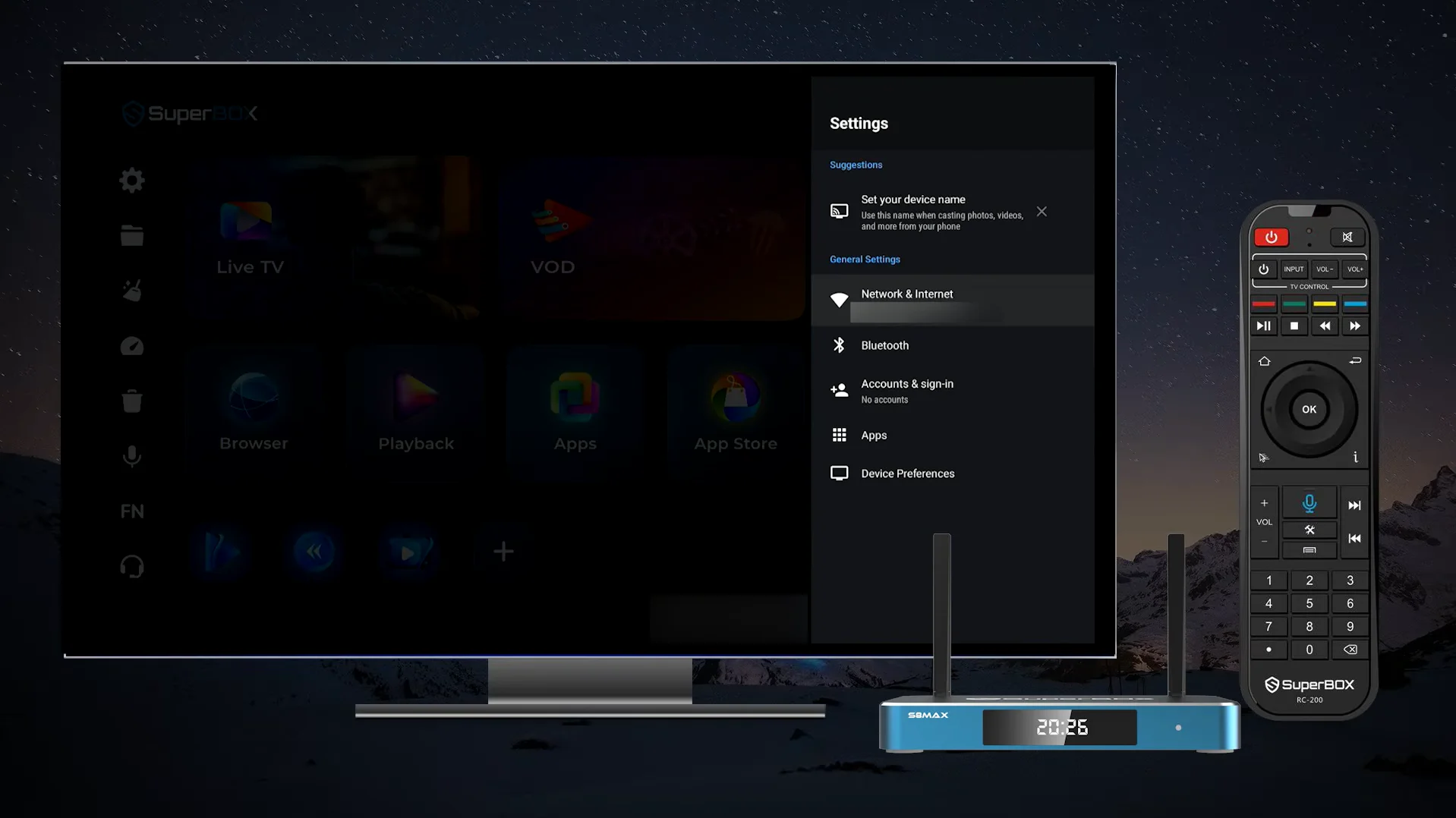
Pairing the Bluetooth Voice Remote Control
Step 4: Inserting Batteries and Activating Remote Pairing Mode
Slide open the battery cover on the back of your SuperBox voice remote and insert two AAA batteries, ensuring correct positive and negative polarity. Stand within three feet of your SuperBox console, then press and hold the OK button and Back/Return button simultaneously (or follow the on-screen initial boot prompt) for five seconds until the small indicator light on the remote begins flashing blue. Note that pressing [OK] + [0] is reserved for toggling button backlighting on the S8 Ultra remote and should not be used for pairing.
Step 5: Confirming Bluetooth Voice Remote Connection in Android Settings
Navigate to the Settings gear icon on your television home screen using the directional buttons and select Connected Devices or Bluetooth Settings. Select Pair New Device, and when the remote appears on the list as RC-100 or RC-200, press OK to confirm pairing. The indicator light will glow solid and turn off, confirming your voice remote is successfully connected via Bluetooth.
Connecting to High-Speed Internet
Step 6: Connecting Through Dual Band Wi-Fi 6 Wireless Networks
From the main home screen, select Network Settings. Toggle Wi-Fi to the On position, and the system will scan for nearby wireless access points. Select your home wireless network from the list, enter your Wi-Fi password using the on-screen keyboard, and select Connect. The system will establish a high-speed connection over the 5.8GHz or 2.4GHz band.
Step 7: Connecting Via Wired Gigabit Ethernet for Maximum Streaming Stability
For the lowest latency and zero buffering during high-demand live sports broadcasts, connect a Cat6 or Cat5e Ethernet network cable from your home internet router directly into the RJ45 Gigabit Ethernet port on the rear of the SuperBox S8. The console will automatically detect the wired connection and switch from wireless to gigabit wired mode.
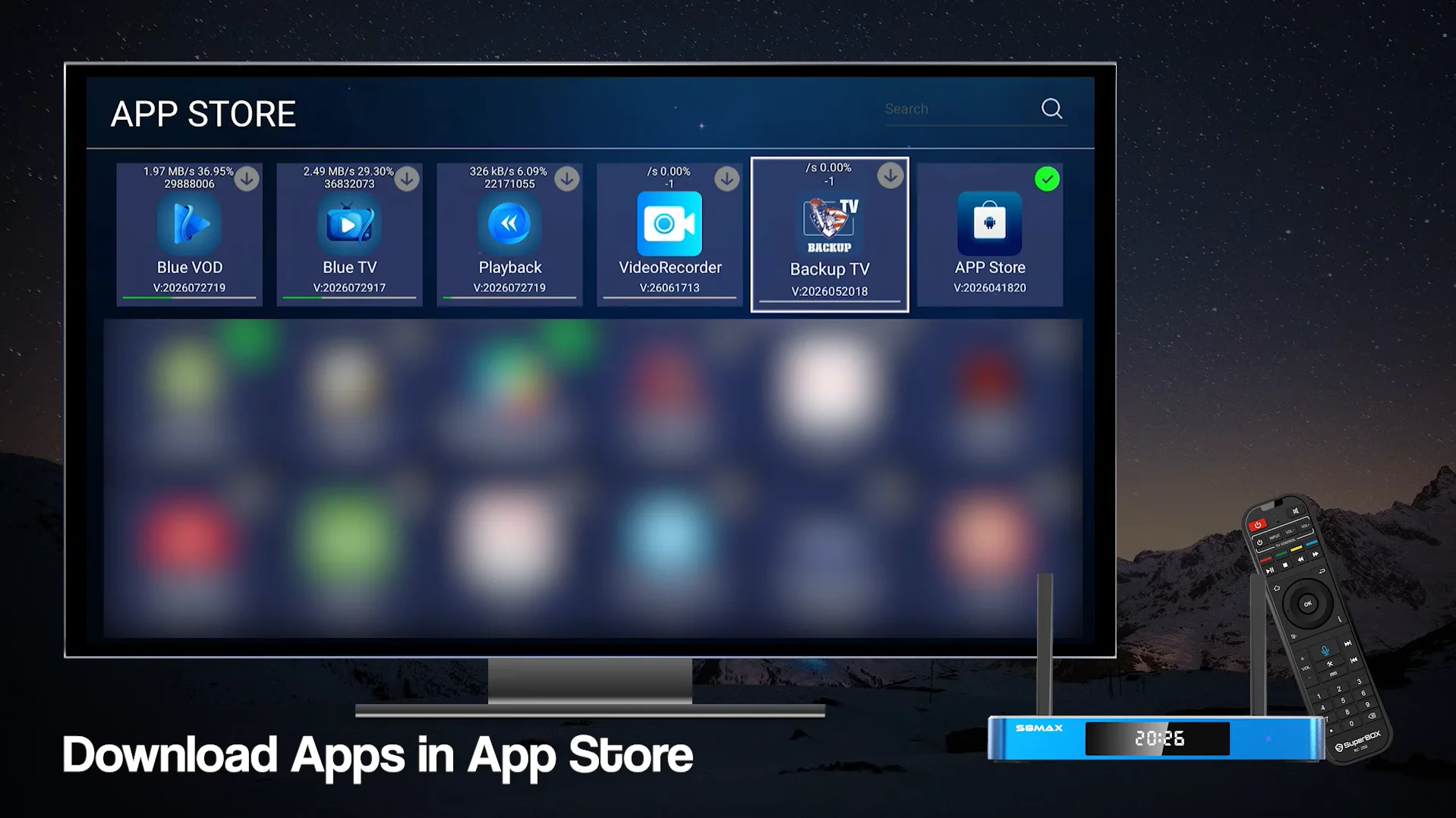
Installing Blue TV Blue VOD and Essential Streaming Apps
Step 8: Opening the Pre-Installed App Store on the Home Screen
On the main home launcher, click on the App Store icon. This specialized application repository houses verified software packages optimized specifically for the SuperBox S8 video decoding architecture.
Step 9: Downloading and Launching Blue TV for Live Channels
Inside the App Store, navigate to the Blue TV icon and press the OK button on your remote control to initiate the download. Once the installation progress bar completes, click Open. Blue TV will configure its electronic program guide and populate over two thousand live broadcast channels automatically without requiring user login credentials.
Step 10: Installing Blue VOD for Movies and Television Series
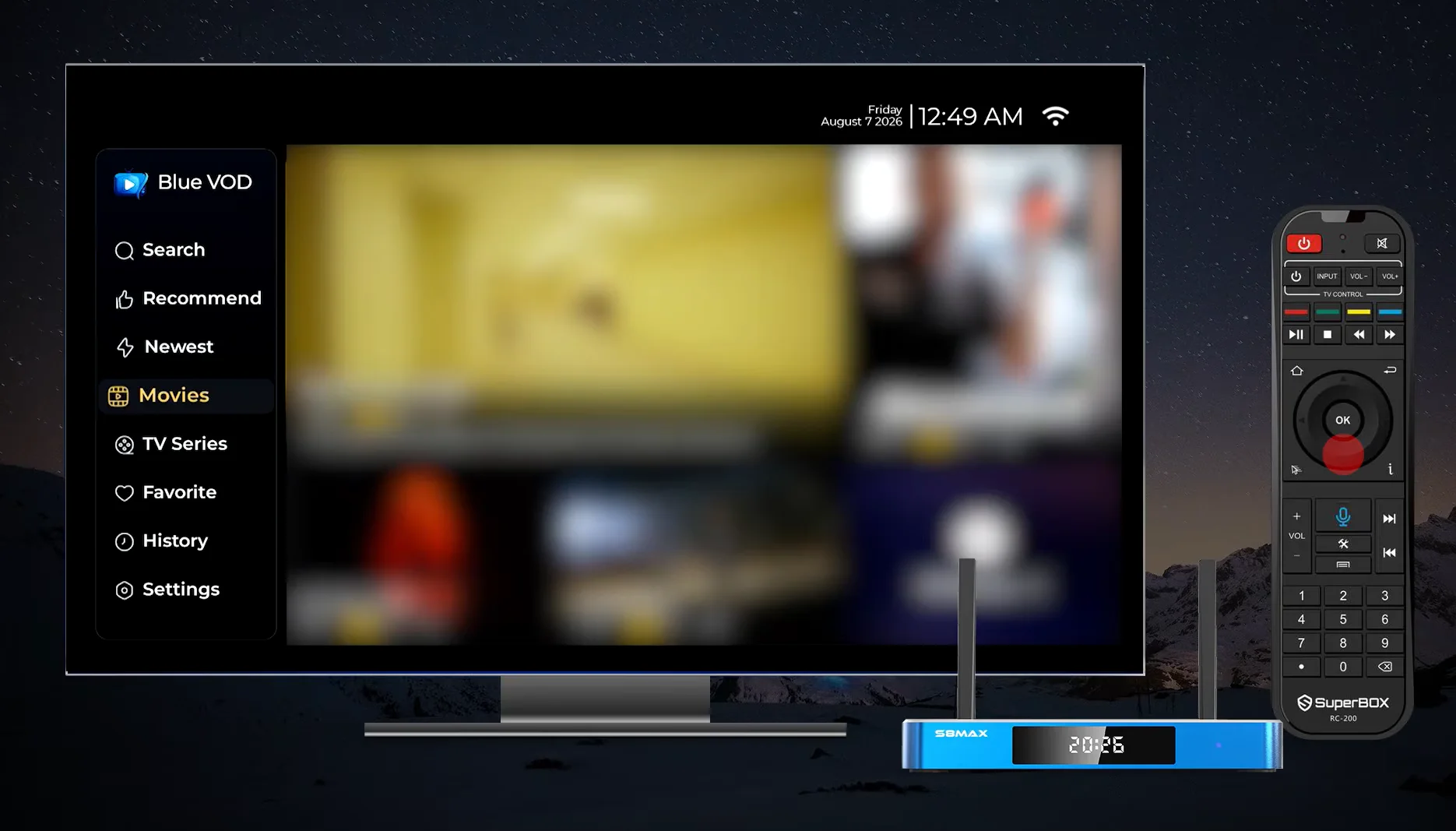
Return to the App Store, select the Blue VOD application, and press Install. After installation completes, launch Blue VOD to verify access to thousands of on-demand movies, complete television show seasons, and documentaries. All titles are indexed by genre and release year for effortless browsing.
Optimizing Video Resolution and System Display Settings
Step 11: Setting 4K 60Hz Display Resolution in Screen Settings
Navigate to Settings, select Display and Sound, and open Screen Resolution. Toggle the Display Mode from Auto to 4K2K-60Hz or the maximum supported resolution of your television. Setting this value manually prevents unwanted resolution downscaling when switching between different video codecs.
Step 12: Calibrating Screen Scaling and Aspect Ratio
In the same display menu, open Screen Position or Screen Zoom. Ensure the calibration borders align perfectly with the outer edges of your television screen so that on-screen sports scoreboards and channel logos are not cut off by TV overscan.
Troubleshooting Common Setup Issues
If you encounter minor difficulties during your first-time configuration, common issues can usually be resolved in seconds.
If your remote control fails to respond via voice, ensure fresh alkaline batteries are installed and repeat the Bluetooth pairing procedure in Step 4. If video appears black on screen, confirm your television is set to the correct HDMI input port and reseat both ends of the HDMI cable.
If live streams buffer upon initial launch, perform a network speed test inside the settings menu. A download speed of at least twenty-five to thirty megabits per second is recommended for flawless 4K video playback.
Product Spotlight SuperBox S8 Ultra Flagship
For viewers who want the ultimate hardware experience with 128GB of internal storage and an illuminated backlit remote control, the SuperBox S8 Ultra delivers unrivaled performance.
Frequently Asked Questions About Setting Up SuperBox S8
Do I need to create an account or sign in to use SuperBox S8?
No, you do not need to create an account, register credit cards, or log into subscriptions. The included Blue TV and Blue VOD applications activate automatically through your hardware serial number upon initial internet connection.
How long does the entire first time setup process take?
The complete first-time configuration, including remote pairing, Wi-Fi connection, and app installation from the App Store, typically takes between seven and ten minutes.
Can I connect the SuperBox S8 to an older television without HDMI?
If your television lacks an HDMI input port, you will need an active HDMI-to-RCA composite converter box. However, an HDMI connection is strongly recommended to enjoy high-definition and 4K picture quality.
What should I do if the App Store fails to open?
Ensure your internet connection is active and stable. If the App Store shows a connection error, navigate to Network Settings, disconnect and reconnect to your Wi-Fi, and restart the console.
Can I install streaming apps like Netflix and Prime Video?
Yes, you can install popular streaming applications like Netflix, YouTube, and Amazon Prime Video directly from the App Store or by downloading APK packages using the pre-installed web browser.
Is an Ethernet wired connection better than Wi-Fi 6?
While the dual-band Wi-Fi 6 wireless connection provides excellent speeds, a wired Gigabit Ethernet connection provides the lowest possible latency and maximum resistance to interference from household wireless devices.
How do I use voice commands on the remote control?
Press and hold the microphone button on the remote, speak your search query clearly into the microphone at the top of the remote, and release the button. The system will display matching movies, television shows, or live channels.
What is the correct remote pairing button combination?
To pair the remote via Bluetooth, press and hold the [OK] and [Back/Return] buttons simultaneously (or follow the on-screen initial boot prompt) for five seconds until the indicator flashes blue, then select the remote in Bluetooth settings. Note that [OK] + [0] is only for toggling backlight on the S8 Ultra RC-200L remote.
Can I adjust the display resolution if my screen is flickering?
Yes, navigate to Settings, open Display, and select a lower resolution mode such as 1080p 60Hz. If flickering ceases, check that your HDMI cable is securely seated or test a different HDMI port on your TV.
Where can I get technical assistance if setup is unsuccessful?
You can contact our dedicated North American customer care team via telephone, WhatsApp at +1 (507) 309-9514, or email at customer@superboxs8.com for prompt assistance.
Conclusion and Customer Support Resources
Setting up your SuperBox S8 is a fast, straightforward experience that immediately connects your living room to thousands of live broadcast channels, regional sports feeds, and commercial-free movies.
By following this step-by-step configuration guide, your device will be optimized for sharp 4K picture quality, smooth voice search navigation, and buffer-free streaming. Enjoy lifetime entertainment with zero monthly subscription fees on your authentic SuperBox S8.
The article was updated on:
